






Excelgoodies logo +91 9176633248

Power BI Classes in Pune

Power BI Reporting:
Beginner to Expert. Now with AI.

Excel Brushup MIS Power BI DAX Power Query Copilot Claude AI

  • Both Online & Classroom | 3 Months (20 sessions, 2 hrs each)
  • 14 Advanced Power BI Dashboards | 5 Other Projects

(1.5K+ Professionals enrolled)

Prove you're human: Type the code shown.

=
Excelgoodies

Power BI Training in Pune – Program Overview

Training Schedule

View Schedule

3 Months | 40 Hours

20 Sessions, 2 Hrs Each

Online & Classroom, Instructor-Led

Pre-Requisite

Excel Formulas

View Course Syllabus

Power BI Course Fee

₹4,000 x 2 months

with initial fee of INR 15,000.

Power BI Reporting in Pune

floating_menu floating_menu floating_menu

Batch starts on

th

From Beginner to Expert

Power BI Expertise + AI = The Reporting Professional of 2026.

From zero to pro in 3 Months. 20 sessions to master Power BI — dashboards, DAX, data modeling, Power Query. 2 sessions to apply AI — Copilot and Claude for Power BI. First you learn to build. Then you learn to build faster.

Tools You'll Learn

Data Analysis Tool

Microsoft Excel

Visualization Tool

Power BI

Data Modeling Tools

Power Pivot, DAX 

Data Analysis & Calculation Tool

DAX 

Data Transformation Tool

Power Query 

AI for Power BI

Copilot + Claude AI

What You’ll Achieve in Just 3 Month with Power BI Training?

Create Professional-Grade Power BI Dashboards - for better decision-making.

Apply AI to Your Power BI Workflow – Use Copilot and Claude to speed up reporting, automate routine tasks, and validate your work.

Master Power Query for Data Cleaning – Learn to transform messy data into structured reports.

Design Efficient Data Models – Establish relationships and use calculated tables in Power Pivot.

Write Powerful DAX Formulas – Gain confidence in handling calculations and logic-based analysis.

Integrate Data from Various Sources – Work with Excel, CSV, and SQL (import mode) effortlessly.

Enhance Report Performance – Apply best practices for optimized speed and responsiveness.

What You’ll Achieve in Just 3 Month with Power BI Training?

Create Professional-Grade Power BI Dashboards - for better decision-making.

Apply AI to Your Power BI Workflow – Use Copilot and Claude to speed up reporting, automate routine tasks, and validate your work.

Master Power Query for Data Cleaning – Learn to transform messy data into structured reports.

Design Efficient Data Models – Establish relationships and use calculated tables in Power Pivot.

Write Powerful DAX Formulas – Gain confidence in handling calculations and logic-based analysis.

Integrate Data from Various Sources – Work with Excel, CSV, and SQL (import mode) effortlessly.

Enhance Report Performance – Apply best practices for optimized speed and responsiveness.

A snapshot of what you'll be learning in 3-months.

Power BI Course Syllabus - Pune

Core Fundamentals

Objective: The term "basic" is subjective based on levels of knowledge, experience, exposure, etc. Basic for one individual doesn't have to be basic for another. Nearly all participants in this training are self-taught and have some Excel skills as well as some gaps.

The objective of this module is to fill gaps, bring everyone to the same level and empower them with comfort and confidence to learn Excel as a reporting solution and not as a computer tool.

Duration – 2.5 Hours (Rapid Session)

CORE FUNDAMENTALS

  • Understanding Excel Environment
  • Entering, Editing and Deleting Text, Numbers, Dates
  • How Excel Understand your information including Text, Numbers and Date values.
  • Fundamental Formatting Techniques & Best Practices
  • Understanding Cell Formats including Advanced Custom Formats
  • Copying and Clearing Formats
  • Working with Styles
  • Understanding Simple Conditional Formatting
  • Moving and Copying data
  • Quick Navigation Techniques
  • Inserting, Deleting and Hiding Rows & Columns
  • Inserting, Deleting, Moving and Copying Sheets
  • Working with multiple Excel Worksheets & Workbooks
  • Working with View Tab including freeze panes, split, new workbook, etc
  • Quick Data Entry Techniques including Auto Fills
  • Understanding & Working with Formulas
  • Mastering Referencing Techniques including Relative, Absolute & Mixed Reference
  • Working with fundamental functions including sum, count, average, max, min, etc
  • Fundamental Keyboard Shortcuts

Advanced Formulas & Functions

Objective: Master 60+ MS Excel formulas to dramatically simplify the work you do in Excel. By the end of the section, you'll be writing robust, elegant formulas from scratch.

Duration – 5 Hours

MATHEMATICAL FUNCTIONS

  • SumIf, SumIfs
  • CountIf, CountIfs
  • AverageIf, AverageIfs
  • SumProduct, Subtotal

LOOKUP FUNCTIONS

  • Vlookup / HLookup
  • Match
  • Dynamic Two Way Lookup
  • Creating Smooth User Interface Using Lookup
  • Offset
  • Index
  • Dynamic Worksheet linking using Indirect

LOGICAL FUNCTIONS

  • Nested If ( And Conditions , Or Conditions )
  • Alternative Solutions for Complex IF Conditions to make work simple
  • And, Or, Not

TEXT FUNCTIONS

  • Upper, Lower, Proper
  • Left, Mid, Right
  • Trim, Len
  • Concatenate
  • Find, Substitute

DATE AND TIME FUNCTIONS

  • Today, Now
  • Day, Month, Year
  • Date, DateDif, DateAdd
  • EOMonth, Weekday

ROUNDING FUNCTIONS

  • Round
  • RoundUp
  • RoundDown
  • MRound

ERROR HANDLING FUNCTIONS

  • isNa
  • isErr
  • isError

Modeling & MIS Reporting

Objective: It is an activity-based section with the goal of collaborating on all the topics you have learned so far to build dynamic MIS Reports. You'll learn to model different scenarios based on input, and assumptions.

Duration – 7.5 Hours

MODELING & MIS REPORTING

  • Creating advanced Excel Models
  • Creating Simple Professionally Formatted Data Models to Simulate Simple Business Scenarios
  • Importing, Cleansing and Normalization Data
  • Aging Reports and Other Complex Date & Time Calculations
  • Reconciling Complex Datasets
  • Develop Advanced Data Models to Simulate Complex Business Scenarios for What IF Analysis
  • Reporting Using Relational Data
  • Consolidation and Reporting of Datasets of Different Structures

Modern Functions

Duration – 2 Hours

Dynamic Array Functions

  • FILTER
  • SORT
  • SORTBY
  • UNIQUE
  • SEQUENCE
  • RANDARRAY

Lookup & Reference Functions

  • XLOOKUP
  • XMATCH

Text Functions

  • TEXTSPLIT
  • TEXTJOIN
  • TEXTBEFORE
  • TEXTAFTER
  • CONCAT

Logical Functions

  • IFS
  • SWITCH
  • LET
  • LAMBDA

Math & Trigonometry Functions

  • MAP
  • REDUCE
  • SCAN

Array Manipulation Functions

  • VSTACK
  • HSTACK
  • CHOOSECOLS
  • CHOSEROWS
  • WRAPROWS / WRAPCOLS

Power BI

Objective: Getting started with Power BI and leverage it’s full potential to develop compelling visualizations.

Building Blocks of Power BI
  • Visualizations
  • Datasets
  • Reports
  • Dashboards
  • Tiles
Building Your First Power BI Report
  • Connect to Data Sources in Power BI Desktop
  • Clean and Transform Your Data With the Query Editor
  • Create a report in Power BI Desktop
  • Publish the report in the Power BI service
Data Modelling with Power BI
  • Fundamentals of Modelling
  • How to Manage Your Data Relationships
  • Create Calculated Columns
  • Optimizing Data Models for Better Visuals
  • Create measures and work with time-based functions
  • Create Calculated Tables
  • Explore Time-Based Data
Visualizations
  • Create and Customize Simple Visualizations
Building compelling data visualizations
  • Identify metrics and pair them with appropriate data visuals
  • Using slicers
  • Creating Map Visualizations
  • Creating Tables and Matrixes
  • Creating Waterfall and Funnel Charts
  • Using Gauges and Single Number Cards
  • Charting Options including Formatting with Colors, Shapes, Text Boxes, Images, etc.
Designing User-friendly reports
  • Customize themes
  • Create versatile layouts for your reports
  • Design principles to reduce noise and highlight data stories
Creating interactive reports for data exploration
  • Filtering & drilling for insights
  • Difference between filters & slicers
  • Filter pane for reporting needs

Exploring Data

  • Use Quick Insights in the Power BI service
  • Create and Configure A Dashboard
  • Share Dashboards with your organization
  • Display Visuals and Tiles Full-Screen 

DAX Functions

Objective: To add analytical power to your Power BI model that is not available in the data as-is, using DAX.

Overview
  • What is DAX?
  • Data Types
  • Table-Valued Functions
  • Building a Calendar Table
  • Date and Time Functions
  • Filter Functions
  • Information Functions
  • Logical Functions
  • Mathematical and Trigonometric Functions
  • Statistical Functions
  • Text Functions
  • Time Intelligence Functions
  • Creating Advanced DAX Measures With Advanced DAX Functions
Creating Advanced Dax Measures With Advanced Dax Functions
  • Calculate()
  • All()
  • Filter()
  • IF()
  • Switch()
  • SumX()
Evaluation Context
  • Filter Context
  • Row Context
  • Using RELATED in a Row Context
  • Filters and Relationships
  • USERELATIONSHIP
Hierarchies in DAX Querying with DAX Relationships
  • One-to-Many Relationships
  • Many-to-Many Relationships

Power Query

Objective: To learn different methods to Transform Data before uploading it to the SQL Database.

Overview
  • Introduction
  • Loading & Refresh
  • Combine data from multiple data sources
Data Transformation
  • Editing Queries Created with Power Query
  • Editing Column Headers in Power Query
  • Splitting Column Data with Power Query
  • Sorting Data
  • Multi-Level Sorting
  • Filtering Data
  • Aggregate data from a column
  • Insert a custom column into a table
  • Merge columns
  • Remove columns
  • Remove rows with errors
  • Promote a row to column headers
  • Transforming Text Values
  • Replacing Data
  • Using the Fill command
  • Pivot and Unpivot Column
  • Transpose Query Data
  • Pivot Column Command in Action
  • Unpivot Columns Command
  • Grouping Data
  • Create a Duplicate Query
  • Group and Summarize Data
  • Advanced Data Grouping
  • Working with multiple sources in Power Query
  • Multiple Excel Tables
  • Expand a column containing an associated table
  • Understanding Table Relationships
  • Merging Queries
Loading Power Query Data to Destinations
  • Familiarity with the Load & Refresh Settings
  • Loading it to Workbook
  • Loading it to Data Model

Power Pivot

Objective: Power Query and Power Pivot complement each other. Power Query is the recommended experience for discovering, connecting to, and importing data. Power Pivot is great for modeling the data you’ve imported.

Introduction to PowerPivot
  • Limitation of Excel Functions
  • Limitation of Excel PivotTable
  • Why PowerPivot?
  • PowerPivot Features - Overview
PowerPivot Environment
  • Opening PowerPivot Environment
  • Understanding External Data Section
  • Understanding Formatting
  • PowerPivot Views
  • Understanding Measures
Taking Data into PowerPivot
  • From Excel
  • From MS Access
  • From MS-SQL
  • From Custom Query
  • From Text Files
  • From Other Sources
Calculated Columns
  • Calculated Columns
  • Entering Formulas
  • Using AutoComplete Feature
  • Renaming Columns
  • Understanding Tables
Advanced calculated columns
  • Understanding Relationship Concept
  • JOIN TABLES
  • LEFT JOIN TABLES
  • RIGHT JOIN TABLES
  • Using UNION QUERIES
Data visualization Using
  • Power View
  • Charts, Score Cards and Dashboards
  • Slicers
  • Map Visualizations
  • Data Binding and Formatting

AI-Powered BI with Microsoft Copilot (New)

AI-Powered BI with Microsoft Copilot
  • Introduction to Copilot in Power BI
  • Generating DAX measures using natural language prompts
  • Building report pages with Copilot (conversational report creation)
  • AI-generated narrative summaries for dashboards
  • Preparing your semantic model for Copilot (data prep for AI)
  • Smart Narratives and Q&A visuals
  • Copilot licensing and organizational requirements

Supercharging BI with Claude AI (New)

Supercharging BI with Claude AI
  • Claude for data analysis: uploading, cleaning, and exploring datasets
  • Writing and debugging DAX with Claude
  • Generating SQL queries from natural language using Claude
  • Interpreting analytical results and statistical outputs with Claude
  • Creating executive-ready data narratives and summaries
  • Claude vs. Copilot: when to use which tool
  • Building an AI-augmented BI workflow (bringing it all together)

M Programming with Power Query (Additional Cost Applicable)

Objective: To perform advanced and complex data transformations not available in the Query Editor

  • M LANGUAGE Specifications
  • Lexical Structure
  • Basic Concepts
  • Values
  • Types
  • Operators
  • Let
  • Conditionals
  • Functions
  • Error Handling
  • Creating Simple M Expressions
  • Creating Simple M Functions
  • Working with List, Record & Tables
  • Understanding Operators and Evaluation Methods
  • Data Types & Type Conversions

Working with M Functions

  • ACCESSING DATA FUNCTIONS - From Excel, SQL, CSV, Tab-Delimited, Webpage, XML, JSON, SharePoint, etc.
  • COMBINER FUNCTIONS
  • COMPARER FUNCTIONS
  • DATE FUNCTIONS
  • DATETIME FUNCTIONS
  • DURATION FUNCTIONS
  • LIST FUNCTIONS
  • LOGICAL FUNCTIONS
  • NUMBER FUNCTIONS
  • RECORD FUNCTIONS
  • REPLACER FUNCTIONS
  • SPLITTER FUNCTIONS
  • TABLE FUNCTIONS
  • TEXT FUNCTIONS
  • TIME FUNCTIONS
  • TYPE FUNCTIONS
  • VALUE FUNCTIONS

Power BI Administration (Additional Cost Applicable)

Objective: Get hands-on experience with advanced administration settings, permissions, Data refresh times etc.

Overview
  • Publishing Power BI Reports
  • Creating & Managing Workspaces and Its Access
  • Creating & Managing Dashboard and Its Access
  • Installing & Configuring Data gateway
  • Scheduling and configuring data refresh
  • Managing & Reusing Datasets
  • Scheduling Report Alerts
  • Setting up Row Level Permissions
  • Managing Users & Audit Log
  • Custom Branding Power BI For your Organization
  • Adding Custom Visuals for your Organization

MS-SQL (Additional Cost Applicable)

Objective: It complements Power Pivots and Power BI better than any other DB.

INTRODUCTION TO MS-SQL

  • Creating a Database
  • Understanding Tables and Creating Tables
  • Inserting, Updating and Deleting Data
  • Querying Data
  • Filtering Data
  • Grouping Data
  • Ordering Data
  • Column Aliases
  • Table Aliases

UNDERSTANDING TRANSACT-SQL DATA TYPES

  • Dates
  • Strings
  • Numeric
  • BLOBs
  • Bits
  • UNIQUEIDENTIFIER
  • Cursor Variables
  • Timestamps

DDL INSIGHTS

  • CREATE TABLE
  • Dropping Objects
  • CREATE INDEX
  • TEMPORARY OBJECTS
  • Object Naming and Dependencies

SELECT STATEMENTS

  • Simple SELECTs
  • Calculated and Derived Fields
  • SELECT TOP / BOTTOM Records
  • Derived Tables
  • Joins
  • Predicates
  • Subqueries
  • Aggregate Functions
  • GROUP BY and HAVING
  • UNION
  • ORDER BY

Architect Power BI Solution (Additional Cost Applicable)

Objective: To put our entire learning to use and arrive at the best possible BI solution -using the right combination of available technologies.

Overview

  • Case Study 1
  • Case Study 2
  • Case Study 3

Power BI System Requirements

  1. Required Software (Free Downloads):

    • Power BI Desktop: Download here

    • Microsoft Excel (2016 or later) (Required for Power Query & Power Pivot features)

  2. Required Specifications:

    • High-Speed Internet: A stable and fast connection is required for a smooth learning experience, software downloads, and data connections.

  3. Recommended Specifications:

    • Operating System: Windows 10 (Professional, Enterprise, or Education) or Windows 11 (Power BI Desktop is not supported on Windows 10 Home or macOS)

    • Processor: Intel Core i5 / AMD Ryzen 5 or higher (Core i3/Ryzen 3 minimum)

    • RAM: 16 GB or more (8 GB minimum, but higher is recommended for large datasets)

    • Secondary Monitor: Useful for multitasking across reports and datasets

  4. For Mac Users:

    Power BI Desktop is not available for macOS. To run Power BI on a Mac, you can use:

    • Windows via Boot Camp (Requires partitioning your Mac's storage)

    • Virtual Machines (e.g., Parallels, VMware, or VirtualBox with a licensed Windows OS)

  5. Excel 2016 & above with PowerPivot

    Available with Office 365 subscriptions that include desktop versions of Excel for Windows.

  6. Secondary Monitor (optional, but recommended)

    Having a secondary monitor will greatly assist in following the pace of the trainer. It allows you to view instructions and your own workspace simultaneously, enhancing your learning experience.

About the trainres

Taught by Microsoft-Certified Power BI Trainers

All our classes are live,
hands-on and with
real-trainers.

About the trainres

Power BI Training Schedule - Pune

Limited Seats. Registration Closing Soon

Have Questions?

Tel:

+91 9176633248

Email:

support@excelgoodies.com

Projects & Assignments

What's included?

  • 40 hours of Instructor-led training.
  • 8 Excel Reports & Models
  • Power BI & Power Query Projects & related case studies.
  • 30-Days post training support (via Email).
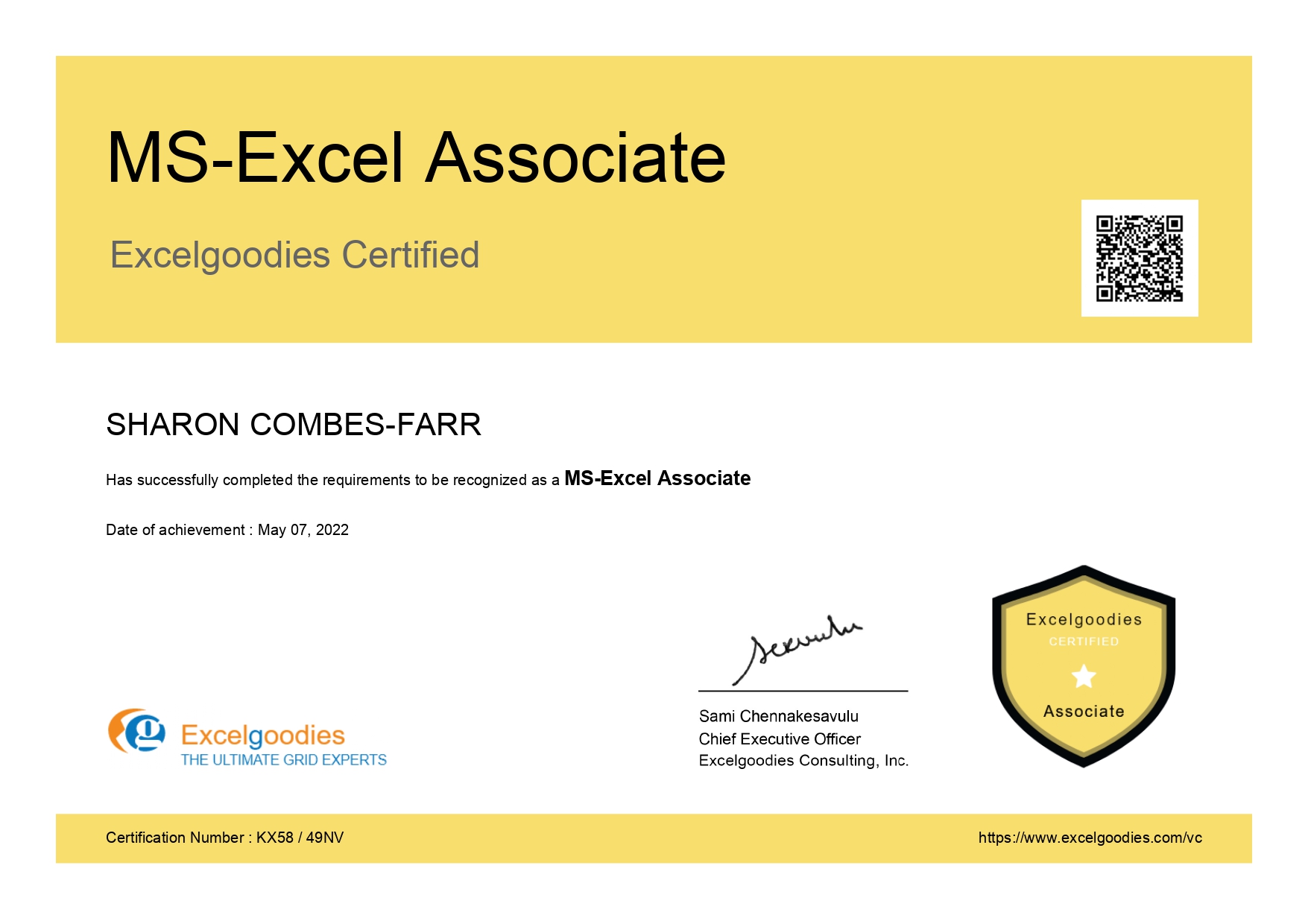
  • MS-Excel Associate
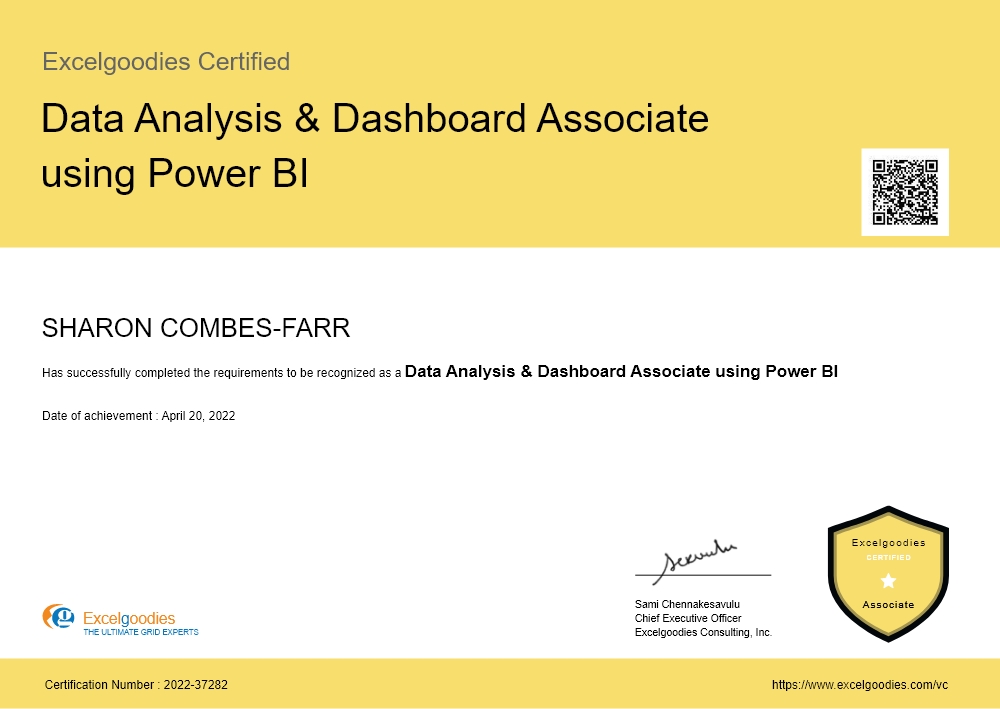
  • Data Analysis & Dashboard Associate using Power BI

Upcoming Batch

Starts On

Time

Course Fee

₹4,000 x 2 months

with initial fee of INR 15,000.

Plus GST for Company-Sponsored.

Power BI Training FAQs

The total course fee in ExcelGoodies is INR 23,000, structured as ₹15,000 upfront and ₹4,000 per month for the next two months. This pocket-friendly EMI option makes it easier for learners across Pune to access premium training without financial burden.

Entry-level Power BI developers earn around ₹4–6 LPA, mid-level professionals earn ₹8–12 LPA, and experienced experts can make ₹12–18 LPA. Pune’s strong IT and analytics ecosystem drives demand, though competition and salary growth challenges exist.

You can explore basics like dashboards in a few hours, but true mastery needs structured learning. Excelgoodies’ 40-hour, 16-session program helps you progress from beginner to job-ready with practical dashboards and real datasets.

The curriculum includes Power Query, DAX formulas, data modeling, visualizations, dashboards, Power BI Service publishing, and sharing reports. Practical projects help build real-world, business-ready skills.

The Power BI course includes 40 hours of live instructor-led training across 16 weekend sessions. Each session features interactive learning, dashboards, and hands-on case studies.

No coding background is required. Basic Excel skills are enough. Excelgoodies’ step-by-step approach ensures both beginners and working professionals can learn smoothly.

MIS professionals, business managers, analysts, finance and HR executives, and fresh graduates can benefit. Anyone wanting to automate reporting or improve data analysis should join.

ExcelGoodies provides 30 days of post-training support. Learners can clarify doubts, revisit concepts, and get guidance on applying Power BI at work.

The lead instructor, Mr. Sami, is a Microsoft-certified professional with 18+ years of experience in analytics and BI consulting. Learners gain practical skills through real-world case studies and hands-on problem-solving.

Yes. Learners receive course materials, datasets, and real-world case studies to practice and reinforce concepts even after completing the course.

Excelgoodies offers training in Advanced Excel, VBA, and Power BI. All classes focus on automation, data analysis, and dashboard reporting.

Yes. ExcelGoodies offers resume guidance, LinkedIn optimization, mock interviews, profile building, and referrals through its corporate network to help learners secure analytics-related roles.

Yes. The Power BI course is conducted on weekends, making it ideal for working professionals who want to upskill without disrupting weekday schedules.

You don’t need to pay the entire amount upfront. EMI options are available—₹15,000 upfront and ₹4,000 per month for two months.

Since the Pune course is online, only a standard laptop and stable internet are required. Zoom-based live classes simulate a classroom experience.

Yes. Online classes are live, instructor-led, and interactive over Zoom, offering real-time discussions, project support, and peer engagement.

Yes. Learners receive an industry-recognized Power BI certification upon successful completion.

Excelgoodies offers 19+ years of expertise, live weekend sessions (no recordings), re-attendance options, real-world projects, and an industry-recognized certification. EMI options and post-training support make learning both effective and accessible.

Unlike other institutes that focus only on dashboards, Excelgoodies emphasizes DAX and Advanced DAX—core components of meaningful analytics. Live sessions, hands-on projects, and re-attendance options help you truly master Power BI.

Yes. Basic Excel knowledge is sufficient. ExcelGoodies provides a complimentary Excel refresher and beginner-friendly guidance through DAX, Power Query, modeling, and dashboards.

Direct placement support is not offered for the Power BI course. However, certified learners may receive occasional job leads. Full placement guidance is provided only in the 1-year Full Stack BI & Automation program.

Live weekend sessions, hands-on learning with 15+ dashboards and 5 real projects, a free Excel refresher, EMI options, and industry-recognized certification make Excelgoodies a top choice for mastering Power BI in Pune.

Yes. The 'Power BI Associate – Data Analysis & Dashboards' certification from Excelgoodies is industry-recognized and adds value both in India and internationally.

More questions ?

Gain industry-recognized credentials.

Certificates

Shareable certificate

Add to your LinkedIn profile

Gain industry-recognized credentials.

Certificates

Master In-Demand Power BI & Data Analytics Skills

Key Skills You'll Master

Interactive Dashboards & Visualization

Data Transformation

Data Modeling & Relationships

Advanced DAX Calculations

Multi-Source Data Integration

Automated Reporting & Refresh

Performance Optimization

Role-Based Security & Access Control

About The Trainer

Mr. Sami

MCT, MCSA

15,000+

Students Trained

19+

Year of Experience

4.9

Reviews

Mr. Sami, Microsoft Certified Trainer, with his qualifications in Finance, HR & Information Technology brings in 19 years of Industry experience. He has successfully trained 15,000+ professionals by now, and the counting is still on.

He has undertaken assignments with the renowned IRS, The World Bank, Tata Chemicals, Buckman Laboratories, Standard Chartered, ING Barings and much more. His nature of going that Extra Mile has got him the startling popularity amongst the Excelgoodies prominent clients.


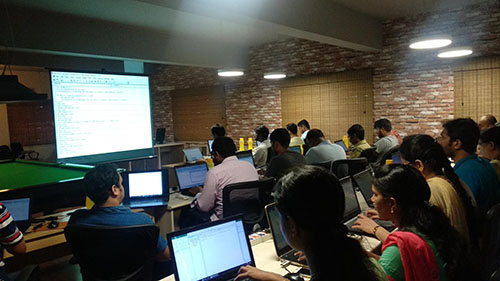
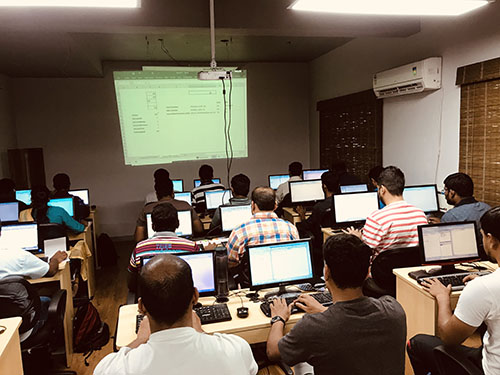
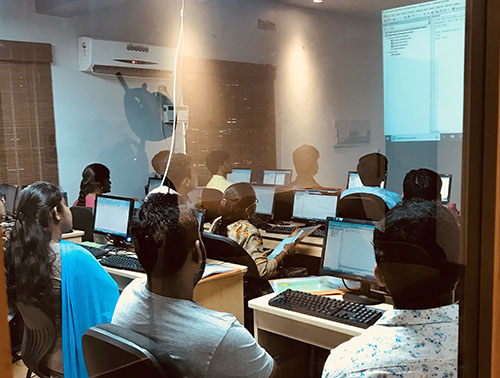
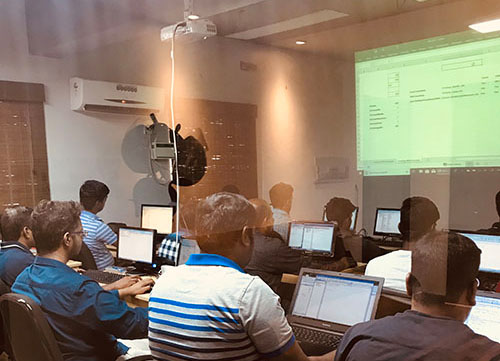
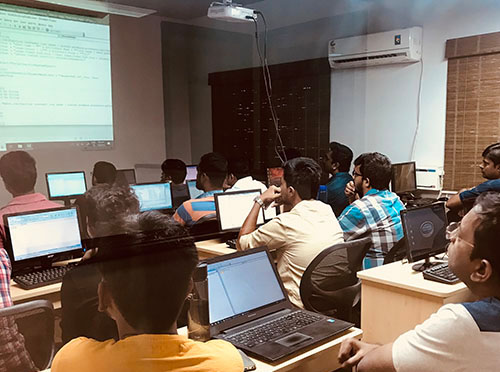
Classroom Gallery

Google Reviews

Build Real-World Power BI Dashboards.

Real-time Projects (Practical Application)

This Pune Power BI course includes 12–14 hands-on projects, focusing on creating interactive dashboards, transforming data with Power Query, and writing DAX formulas. Gain real-world experience in data analytics and reporting automation — skills highly valued across Pune’s finance, consulting, tech, and healthcare industries.

Inventory & Supply Chain

Create dynamic visualizations that track inventory levels, order fulfillment rates, and supplier performance. Learn to automate real-time data alerts to ensure optimal stock levels and timely deliveries.

Financial Health Dashboard

Build financial dashboards that display key metrics like revenue, expenses, and cash flow, with live updates. Automate reports that compare actual vs. budget figures and offer real-time insights for business decisions.

Customer Support Dashboard

Visualize customer service metrics such as ticket status, response times, and customer satisfaction. Learn how to automate ticket updates and generate insights to improve support efficiency.

Sales Performance Dashboard

Track sales revenue, regional performance, and top-selling products using dynamic visualizations. Create automatic reports to measure progress against sales targets.

Project Management Dashboard

Design a project management dashboard that tracks timelines, budgets, and milestones in real time. Automate status updates to identify risks or delays early.

Marketing Campaign Dashboard

Build dashboards that visualize key marketing metrics, such as conversions, impressions, and ROI. Automate reports to evaluate campaign success and optimize marketing strategies.

Create dynamic visualizations that track inventory levels, order fulfillment rates, and supplier performance. Learn to automate real-time data alerts to ensure optimal stock levels and timely deliveries.

Build financial dashboards that display key metrics like revenue, expenses, and cash flow, with live updates. Automate reports that compare actual vs. budget figures and offer real-time insights for business decisions.

Visualize customer service metrics such as ticket status, response times, and customer satisfaction. Learn how to automate ticket updates and generate insights to improve support efficiency.

Track sales revenue, regional performance, and top-selling products using dynamic visualizations. Create automatic reports to measure progress against sales targets.

Design a project management dashboard that tracks timelines, budgets, and milestones in real time. Automate status updates to identify risks or delays early.

Build dashboards that visualize key marketing metrics, such as conversions, impressions, and ROI. Automate reports to evaluate campaign success and optimize marketing strategies.

Corporate Power BI Training

bi_report_automation_mob

Avail additional 10% Corporate Benefit on the total course fee for 5+participant.

Get you team BI ready, today.

Ms.Jayasree

Business Associate

Prove you're human: Type the code shown.

=
Excelgoodies

Esteemed Clientele

Esteemed Clientele Esteemed Clientele Esteemed Clientele Esteemed Clientele Esteemed Clientele Esteemed Clientele Esteemed Clientele Esteemed Clientele Esteemed Clientele Esteemed Clientele Esteemed Clientele Esteemed Clientele Esteemed Clientele Esteemed Clientele Esteemed Clientele Esteemed Clientele Esteemed Clientele Esteemed Clientele Esteemed Clientele Esteemed Clientele Esteemed Clientele Esteemed Clientele Esteemed Clientele Esteemed Clientele Esteemed Clientele Esteemed Clientele Esteemed Clientele Esteemed Clientele Esteemed Clientele Esteemed Clientele Esteemed Clientele Esteemed Clientele Esteemed Clientele Esteemed Clientele Esteemed Clientele Esteemed Clientele Esteemed Clientele Esteemed Clientele Esteemed Clientele Esteemed Clientele Esteemed Clientele Esteemed Clientele Esteemed Clientele Esteemed Clientele Esteemed Clientele Esteemed Clientele Esteemed Clientele Esteemed Clientele Esteemed Clientele Esteemed Clientele Esteemed Clientele Esteemed Clientele Esteemed Clientele Esteemed Clientele Esteemed Clientele Esteemed Clientele Esteemed Clientele Esteemed Clientele

Thousands Trained. Here’s What They Say.

Total Reviews 2080
Average Rating
4.5
Excelgoodies Excelgoodies Excelgoodies Excelgoodies Excelgoodies
Why Excelgoodies image

Thousands Trained. Here’s What They Say.

APPLICATION DEADLINE

Registration Closes
on .

Prove you're human: Type the code shown.

=
Excelgoodies

Industry Insights

Industry Insights