







Excelgoodies logo +91 9176633248
Course on Becoming a BI Architect — Without Coding.

Full Stack BI& Enterprise Automation Architect — with AI

Power BI MIS Reporting SQL VBA Python Power Apps Power Automate Dataverse Power Pages Copilot Claude AI

  • Both Online & Classroom | 1 year (72 sessions, 2 hrs each)
  • 50+ Projects & 13-Certificates

(1.5K+ Professionals enrolled)

Prove you're human: Type the code shown.

=
Excelgoodies

Program Overview

Training Schedule

Tuesday, 11 Apr

View Schedule

1 year | 180 Hours

72 Sessions, 2 Hrs Each

Online & Classroom, Instructor-Led

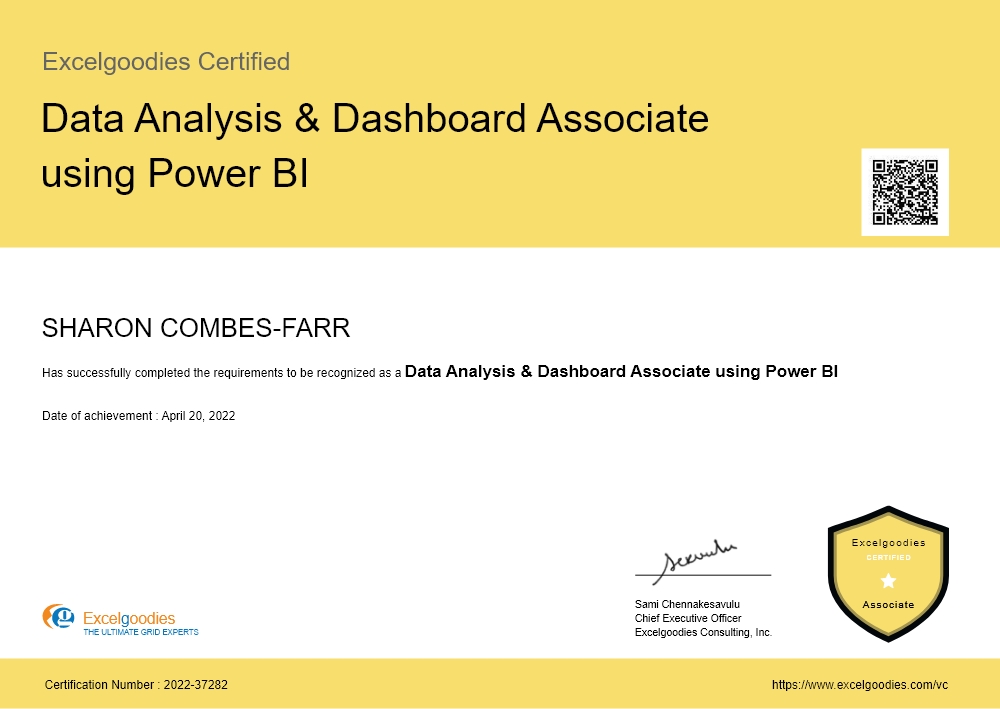
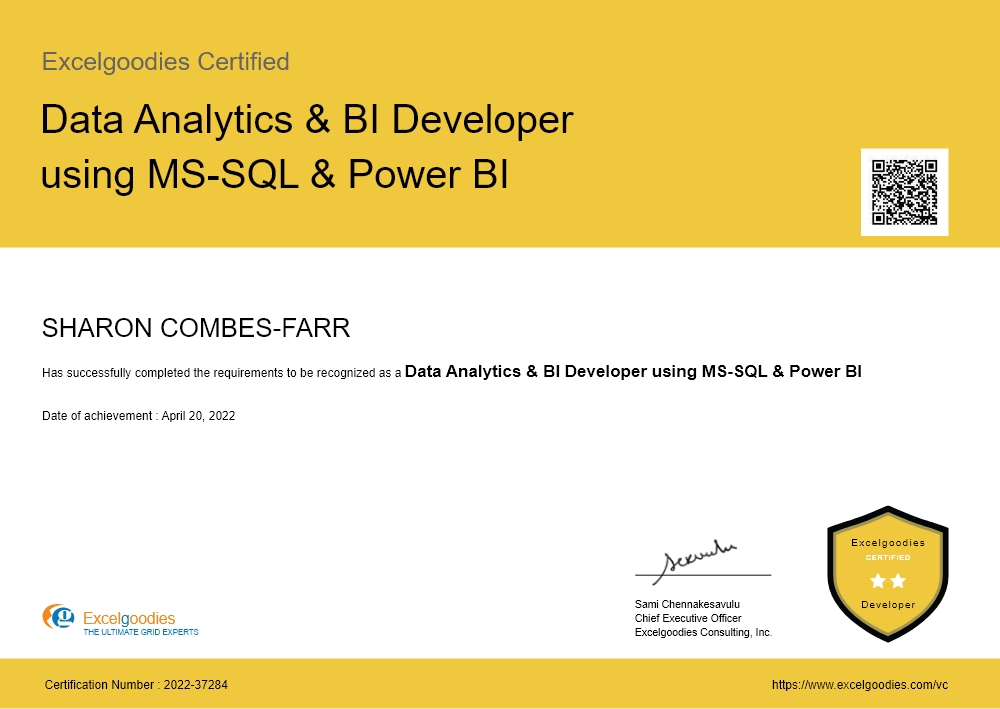
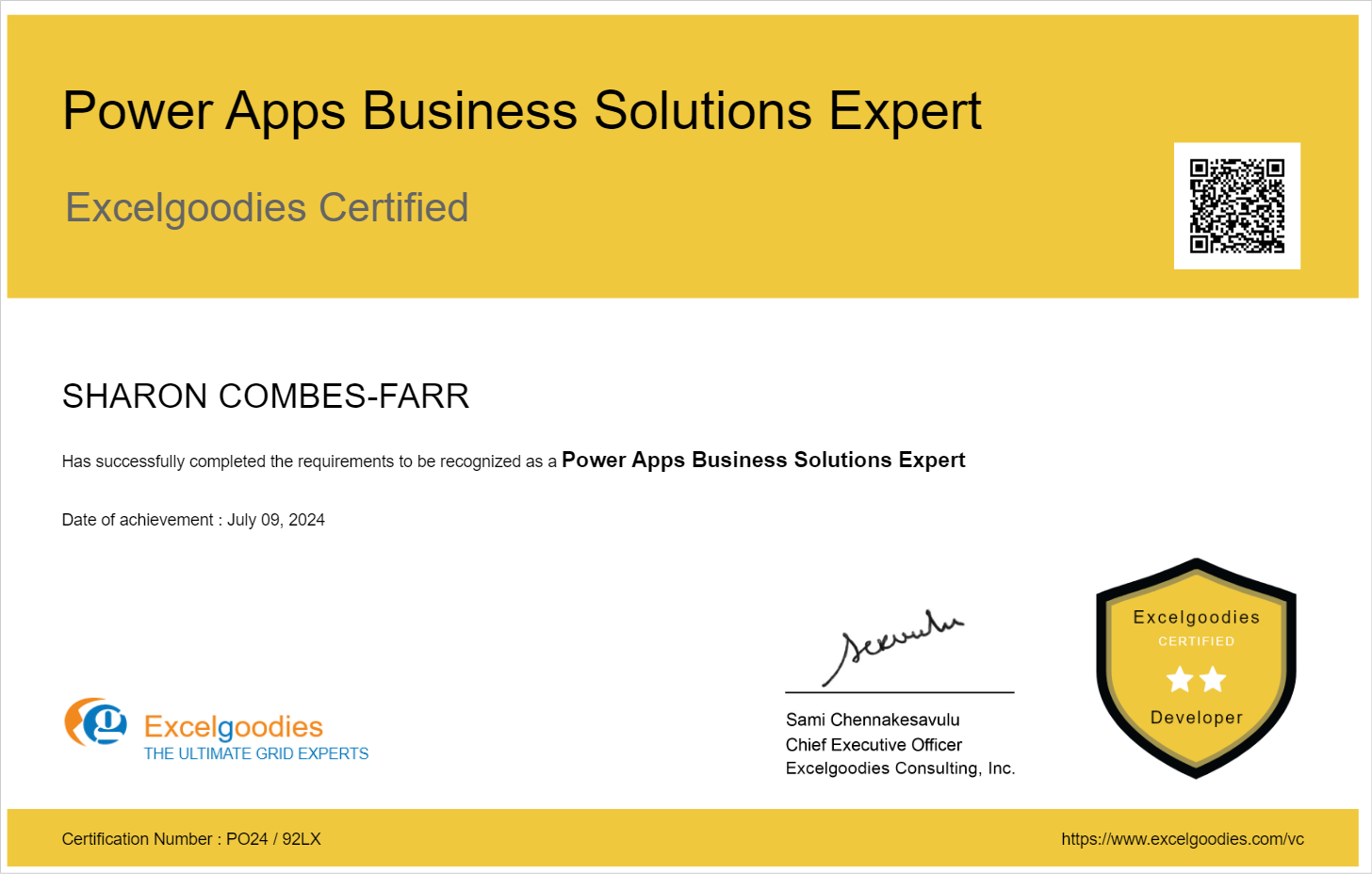
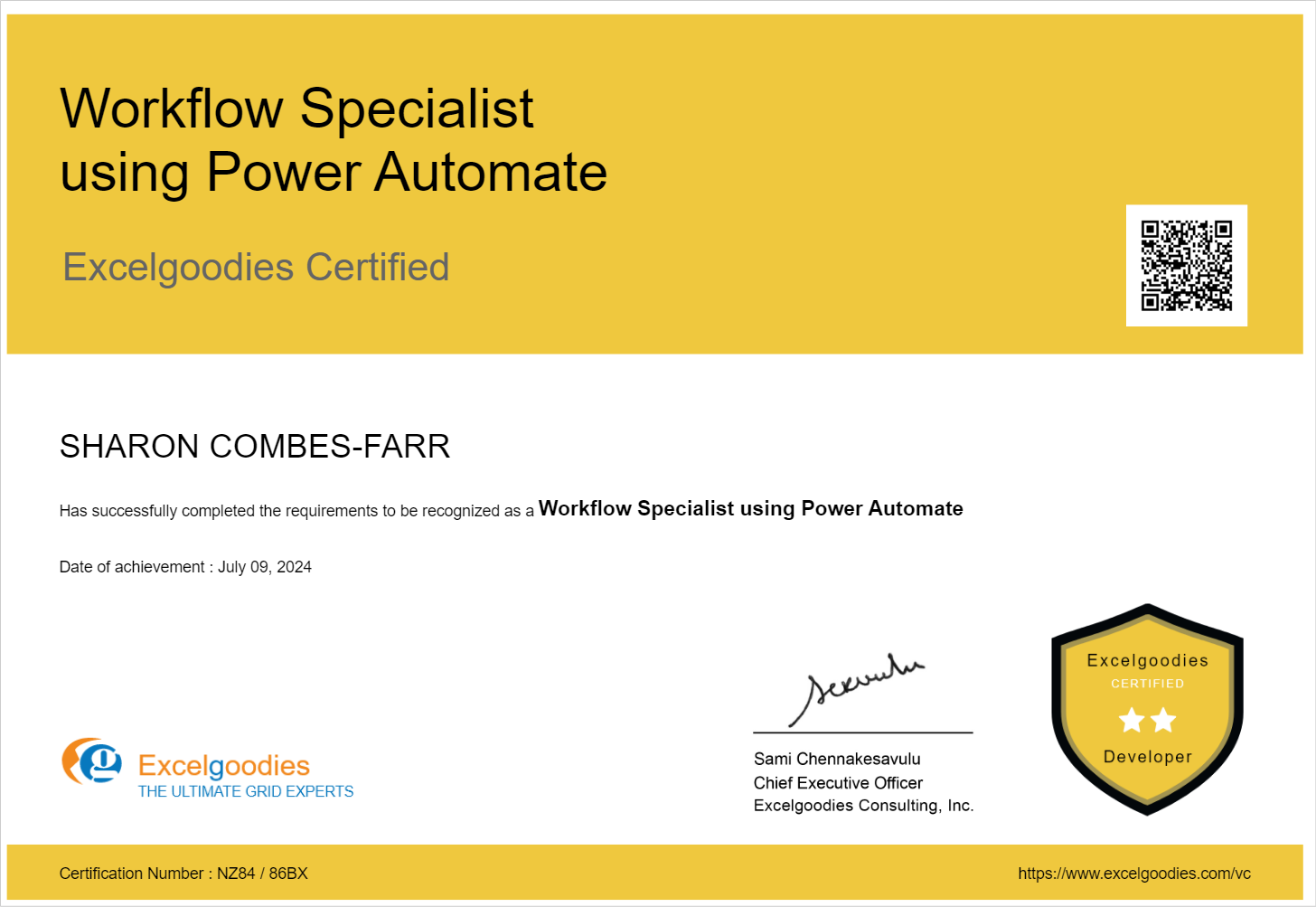
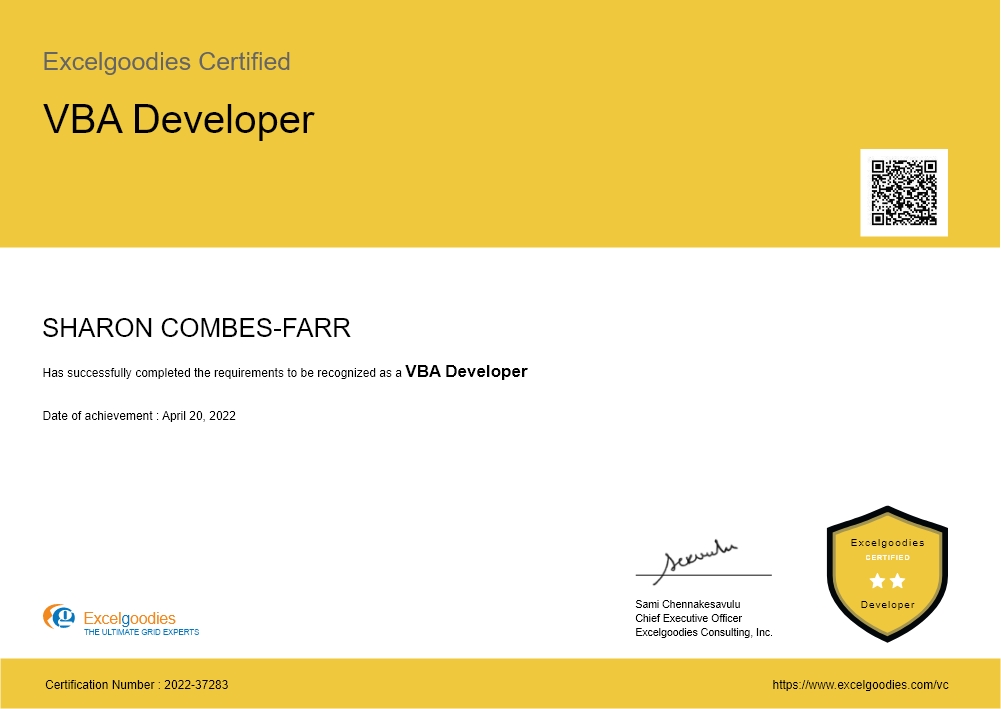
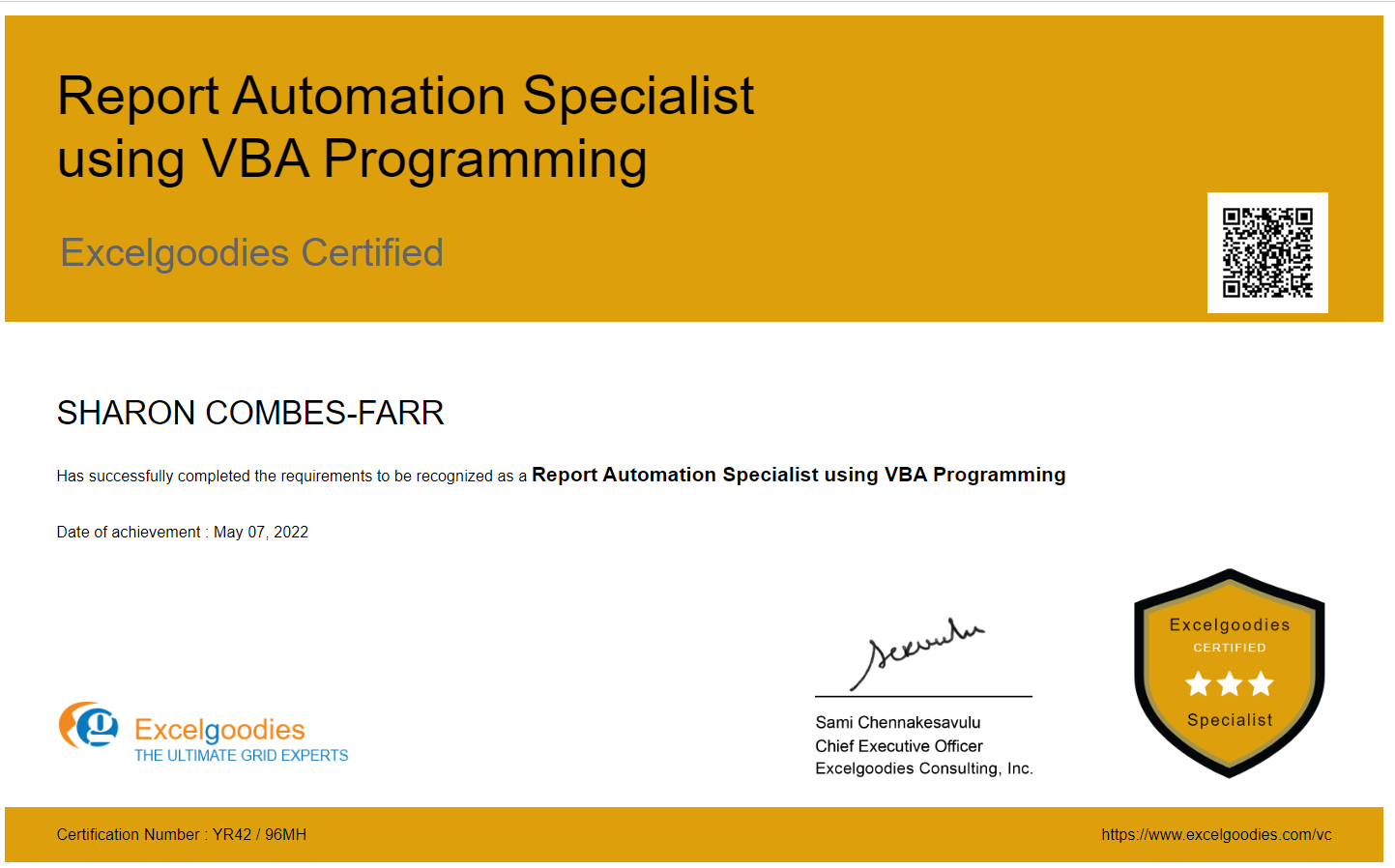
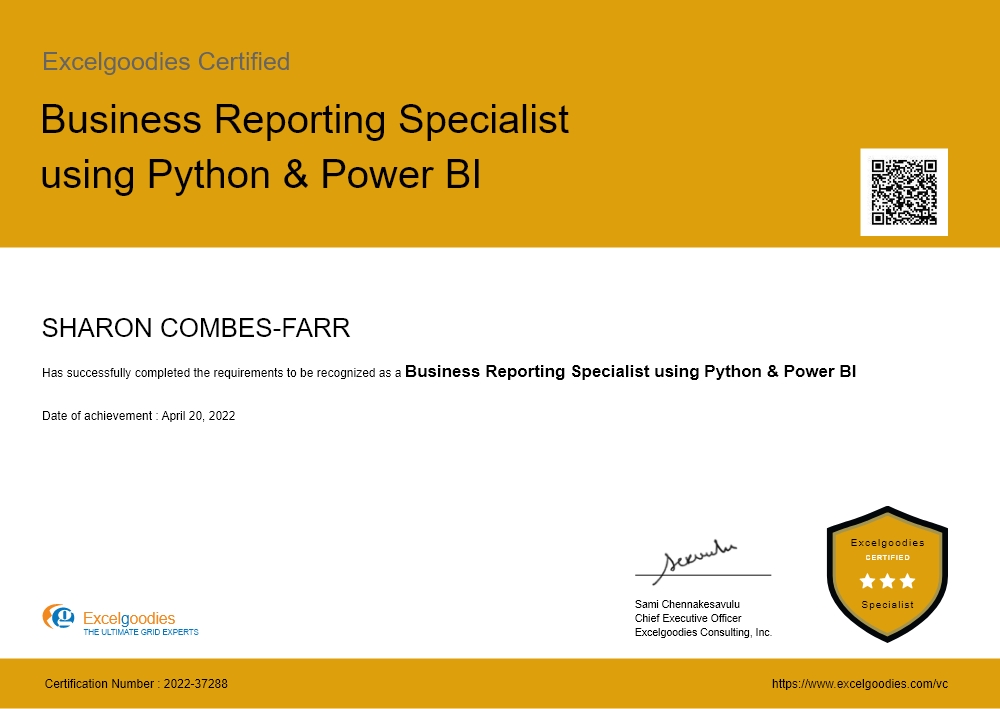
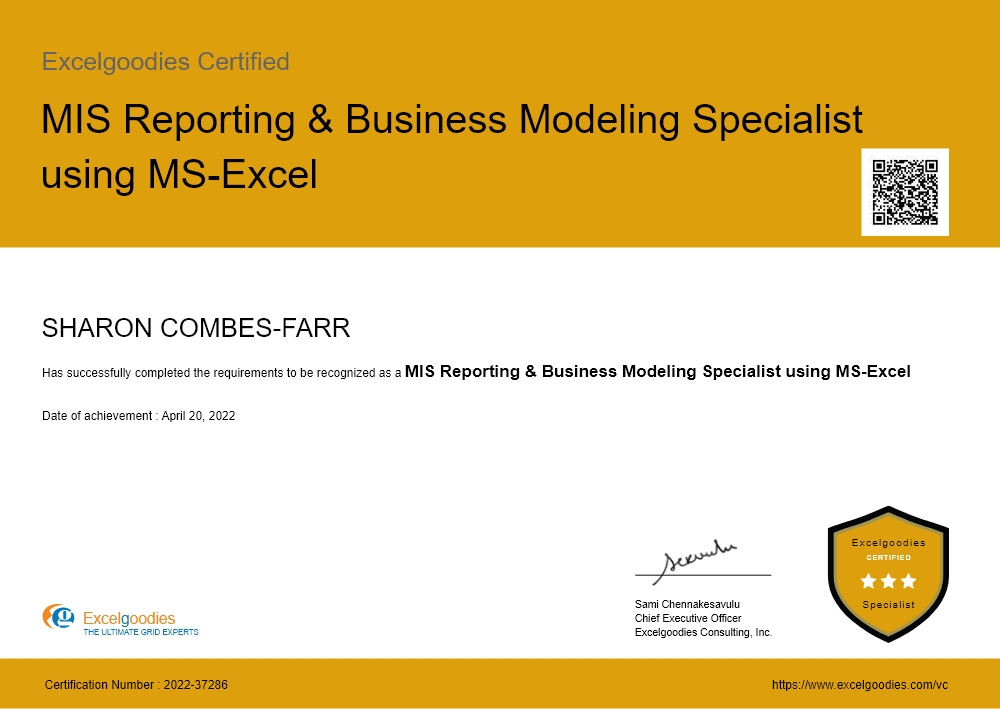
Certificates

13 Specialist Certificates

View Certificate Details

Course Fee

₹6,000 / month

with initial fee of INR 15,000.

Full Stack BI & Enterprise Automation Architect — with AI

floating_menu floating_menu floating_menu

Batch starts on

th

On-Prem + On-Cloud Tools.

On-Prem + Cloud Automation = Unmatched Reporting Power

Hybrid BI is the game-changer for modern reporting and automation.

Whether you’re transitioning from legacy systems to a cloud environment, scaling business operations, or integrating multiple data sources, this course helps you leverage both On-Prem and Cloud solutions. Learn to create scalable, automated BI reporting systems that seamlessly bridge the gap between your existing infrastructure and modern cloud technologies—"no prior IT or coding knowledge required."

Tools You'll Learn

Data Analysis Tool

Microsoft Excel

Visualization Tool

Power BI

Data Modeling Tools

Power Pivot, DAX

Data Transformation Tools

Power Query 

Data Warehousing & Querying

MS-SQL

Automation & Scripting Tools

VBA

Scripting Language

Python

Application Development Tools

Power Apps

Automation Tool

Power Automate

Portal & Web Tools

Power Pages

Data Platform

Microsoft Dataverse

AI for Power BI

Copilot + Claude AI

In just 1 year, you'll be able to:

Lead BI Transformations with scalable hybrid solutions integrating On-Prem and Cloud.

Apply AI to Your Power BI Workflow – Use Copilot and Claude to speed up reporting, automate routine tasks, and validate your work.

Automate Reporting Workflows for faster, smarter data processing across platforms.

Build Scalable BI Systems that grow with your business, connecting On-Prem and Cloud.

Optimize Data Transformation using Power Query, SQL, and Python for efficient reporting.

Design Hybrid Automation to seamlessly connect On-Prem and Cloud reporting systems.

Enable Real-Time Reporting by merging data from both environments and automating processes.

Implement end-to-end BI Reporting and Automation across On-Prem and Cloud.

In just 1 year, you'll be able to:

Lead BI Transformations with scalable hybrid solutions integrating On-Prem and Cloud.

Apply AI to Your Power BI Workflow – Use Copilot and Claude to speed up reporting, automate routine tasks, and validate your work.

Automate Reporting Workflows for faster, smarter data processing across platforms.

Build Scalable BI Systems that grow with your business, connecting On-Prem and Cloud.

Optimize Data Transformation using Power Query, SQL, and Python for efficient reporting.

Design Hybrid Automation to seamlessly connect On-Prem and Cloud reporting systems.

Enable Real-Time Reporting by merging data from both environments and automating processes.

Implement end-to-end BI Reporting and Automation across On-Prem and Cloud.

A snapshot of what you'll be learning in 1-year.

Course Syllabus Overview

Quick Excel brush-up

Objective: To prepare a quick POC with small data and get the concurrence on the output before investing time on huge datasets.

Overview

  • Core Fundamentals Of Spreadsheets
  • How System Interprets Your Data
  • Crucial Formatting Concepts
  • Understanding Core Formula Fundamentals & Advanced Referencing Concepts
  • 60+ Advanced Excel Functions
  • Cleansing & Transforming Data
  • Data Summarization
  • Conditional Summarization
  • Working With Multiple Datasets
  • Working With Pivot Tables Including Advanced Pivot Tables Options
  • 15+ Charts - When To Use What Chart?
  • Develop Data Models to Simulate Complex Business Scenarios for What IF Analysis

Modeling with Power Pivot

Objective: To do faster queries, simpler DAX code and enjoy easier maintenance.

Introduction To PowerPivot

  • Limitation Of Excel Functions
  • Limitation Of Excel Pivot table
  • Why Powerpivot?
  • Powerpivot Features – Overview

Powerpivot Environment

  • Opening Powerpivot Environment
  • Understanding External Data Section
  • Understanding Formatting
  • Powerpivot Views
  • Understanding Measures

Loading Data Into PowerPivot

Calculated Columns

  • Calculated Columns
  • Entering Formulas
  • Using Autocomplete Feature
  • Renaming Columns
  • Understanding Tables

Creating Measures

  • Creating Simple DAX Measures
  • Explicit Measure Vs Implicit Measure
  • Referencing Measures In Other Measures
  • Formatting Measures
  • Manage Data Relationships
  • Working With Multiple Tables
  • Disconnected Tables
  • Creating Custom Calendars
  • Using Advanced Filter()
  • Advanced Calculated Columns
  • Understanding Relationship Concept
  • Join Tables
  • Left Join Tables
  • Right Join Tables

Data Visualization Using

  • Charts, Score Cards And Dashboards
  • Slicers
  • Map Visualizations
  • Data Binding And Formatting

Creating Advanced Dashboards With PowerPivot

Creating Free Form Reports With PowerPivot & Excel

Develop Simple Models And Forecast Data Using PowerPivot & Excel

Modern Functions

Duration – 2 Hours

Dynamic Array Functions

  • FILTER
  • SORT
  • SORTBY
  • UNIQUE
  • SEQUENCE
  • RANDARRAY

Lookup & Reference Functions

  • XLOOKUP
  • XMATCH

Text Functions

  • TEXTSPLIT
  • TEXTJOIN
  • TEXTBEFORE
  • TEXTAFTER
  • CONCAT

Logical Functions

  • IFS
  • SWITCH
  • LET
  • LAMBDA

Math & Trigonometry Functions

  • MAP
  • REDUCE
  • SCAN

Array Manipulation Functions

  • VSTACK
  • HSTACK
  • CHOOSECOLS
  • CHOSEROWS
  • WRAPROWS / WRAPCOLS

Power BI

Objective: Getting started with Power BI and leverage it’s full potential to develop compelling visualizations.

Building Blocks of Power BI

  • Visualizations
  • Datasets
  • Reports
  • Dashboards
  • Tiles

Building Your First Power BI Report

  • Connect to Data Sources in Power BI Desktop
  • Clean and Transform Your Data With the Query Editor
  • Create a report in Power BI Desktop
  • Publish the report in the Power BI service

Data Modeling with Power BI

  • Fundamentals of Modeling
  • How to Manage Your Data Relationships
  • Create Calculated Columns
  • Optimizing Data Models for Better Visuals
  • Create measures and work with time-based functions
  • Create Calculated Tables
  • Explore Time-Based Data

Visualizations

  • Create and Customize Simple Visualizations

Building compelling data visualizations

  • Identify metrics and pair them with appropriate data visuals
  • Using slicers
  • Creating Map Visualizations
  • Creating Tables and Matrixes
  • Creating Scatter Charts
  • Creating Waterfall and Funnel Charts
  • Using Gauges and Single Number Cards
  • Charting Options including Formatting with Colors, Shapes, Text Boxes, Images, etc.

Designing User-friendly reports

  • Customize themes
  • Create versatile layouts for your reports
  • Design principles to reduce noise and highlight data stories

Creating interactive reports for data exploration

  • Filtering & drilling for insights
  • Difference between filters & slicers
  • Filter pane for reporting needs

Exploring Data

  • Use Quick Insights in the Power BI service
  • Create and Configure A Dashboard
  • Share Dashboards with your organization
  • Display Visuals and Tiles Full-Screen 

Power Query

Objective: To learn different methods to Transform Data before uploading it to the SQL Database.

Overview

  • Introduction
  • Loading & Refresh
  • Combine data from multiple data sources

Data Transformation

  • Editing Queries Created with Power Query
  • Editing Column Headers in Power Query
  • Splitting Column Data with Power Query
  • Sorting Data
  • Multi-Level Sorting
  • Filtering Data
  • Aggregate data from a column
  • Insert a custom column into a table
  • Merge columns
  • Remove columns
  • Remove rows with errors
  • Promote a row to column headers
  • Transforming Text Values
  • Replacing Data
  • Using the Fill command
  • Pivot and Unpivot Column
  • Transpose Query Data
  • Pivot Column Command in Action
  • Unpivot Columns Command
  • Grouping Data
  • Create a Duplicate Query
  • Group and Summarize Data
  • Advanced Data Grouping
  • Working with multiple sources in Power Query
  • Multiple Excel Tables
  • Expand a column containing an associated table
  • Understanding Table Relationships
  • Merging Queries

Loading Power Query Data to Destinations

  • Familiarity with the Load & Refresh Settings
  • Loading it to Workbook
  • Loading it to Data Model

DAX Functions

Objective: To add analytical power to your Power BI model that is not available in the data as-is, using DAX.

Overview

  • What is DAX?
  • Data Types
  • Table-Valued Functions
  • Building a Calendar Table
  • Date and Time Functions
  • Filter Functions
  • Information Functions
  • Logical Functions
  • Mathematical and Trigonometric Functions
  • Statistical Functions
  • Text Functions
  • Time Intelligence Functions

Creating Advanced Dax Measures With Advanced Dax Functions

  • Calculate()
  • All()
  • Filter()
  • IF()
  • Switch()
  • SumX()

Evaluation Context

  • Filter Context
  • Row Context
  • Using RELATED in a Row Context
  • Filters and Relationships
  • USERELATIONSHIP

Hierarchies in DAX

Querying with DAX

Relationships

  • One-to-Many Relationships
  • Many-to-Many Relationships

T-SQL

Objective: To query MS-SQL Database (es) by writing accurate, effective, and robust T-SQL code - the right way.

Introduction to MS-SQL

  • Creating a Database
  • Understanding Tables and Creating Tables
  • Inserting, Updating and Deleting Data
  • Querying Data
  • Filtering Data
  • Grouping Data
  • Ordering Data
  • Column Aliases
  • Table Aliases

DDL INSIGHTS

  • CREATE TABLE
  • Dropping Objects
  • CREATE INDEX
  • TEMPORARY OBJECTS
  • Object Naming and Dependencies

SELECT STATEMENTS

  • Simple SELECTs
  • Calculated and Derived Fields
  • SELECT TOP / BOTTOM Records
  • Derived Tables
  • Joins
  • Predicates
  • Subqueries
  • Aggregate Functions
  • GROUP BY and HAVING
  • UNION
  • ORDER BY

Advanced DAX Expressions

Objective: Leverage DAX potential to perform advanced data analytics

Advanced Table Manipulation Functions

  • ADDCOLUMNS
  • CROSSJOIN
  • DATATABLE
  • DISTINCT column
  • EXCEPT
  • FILTERS
  • GENERATESERIES
  • INTERSECT
  • NATURALINNERJOIN
  • NATURALLEFTOUTERJOIN
  • ROW
  • SELECTCOLUMNS
  • SUMMARIZE
  • SUMMARIZECOLUMNS
  • Constructor
  • TOPN
  • UNION
  • VALUES

Advanced Filter Functions

  • ADDMISSINGITEMS
  • ALL
  • ALLCROSSFILTERED
  • ALLEXCEPT
  • ALLSELECTED
  • CALCULATE
  • DISTINCT
  • FILTER
  • FILTERS
  • RELATED
  • REMOVEFILTERS
  • SELECTEDVALUE
  • USERELATIONSHIP
  • VALUES

ADVANCED USAGE OF

  • CALCULATE
  • SUMX
  • COUNTX
  • AVERAGEX
  • MAXX
  • MINXX
  • DATATABLE

Power BI Administration

Objective: Get hands-on experience with advanced administration settings, permissions, Data refresh times etc.

Overview

  • Publishing Power BI Reports
  • Creating & Managing Workspaces and Its Access
  • Creating & Managing Dashboard and Its Access
  • Installing & Configuring Data gateway
  • Scheduling and configuring data refresh
  • Managing & Reusing Datasets
  • Scheduling Report Alerts
  • Setting up Row Level Permissions
  • Managing Users & Audit Log
  • Custom Branding Power BI For your Organization
  • Adding Custom Visuals for your Organization

Architect Power BI Solution

Objective: To put our entire learning to use and arrive at the best possible BI solution -using the right combination of available technologies.

Overview

  • Case Study 1
  • Case Study 2
  • Case Study 3

AI-Powered BI with Microsoft Copilot (New)

AI-Powered BI with Microsoft Copilot
  • Introduction to Copilot in Power BI
  • Generating DAX measures using natural language prompts
  • Building report pages with Copilot (conversational report creation)
  • AI-generated narrative summaries for dashboards
  • Preparing your semantic model for Copilot (data prep for AI)
  • Smart Narratives and Q&A visuals
  • Copilot licensing and organizational requirements

Supercharging BI with Claude AI (New)

Supercharging BI with Claude AI
  • Claude for data analysis: uploading, cleaning, and exploring datasets
  • Writing and debugging DAX with Claude
  • Generating SQL queries from natural language using Claude
  • Interpreting analytical results and statistical outputs with Claude
  • Creating executive-ready data narratives and summaries
  • Claude vs. Copilot: when to use which tool
  • Building an AI-augmented BI workflow (bringing it all together)

VBA Macro Automation

Objective: To collect data from multiple ad-hoc sources and prepare it for loading it to SQL Database for BI Reporting purpose.

Overview

  • Core Fundamentals of VBA

  • Understanding VBA Environment
  • Writing simple VBA Codes
  • Concept of Variables & Data Types
  • Testing & Debugging Code
  • Understanding Fundamental Coding Blocks
  • IF Block
  • Select Case
  • And / Or Conditions
  • Understanding Fundamentals of Looping
  • For Loop
  • Do While
  • Understanding Object Based Programming
  • Advanced Excel Automations
  • Word Automation
  • Outlook Automation
  • Working with Database
  • Working with Web Browsers - Web Scrapping
  • Creating User Interfaces with VB Forms
  • Handling Run Time Errors & Securing Code

VBA Automation using Excel

VBA Programming Fundamentals

  • Understanding Object Based Programming
  • Understanding Objects
  • Working with Collection Objects
  • Working with Methods
  • Read & Write Properties

Programming & Automating with Excel Objects

  • Excel Object
  • Workbook Object
  • Worksheet Object
  • Cell Objects
  • WorksheetFunction Object
  • PivotTables Object
  • Chart Objects
  • Other Misc Objects

Code Automation Concepts via Excel Automation

  • Calling Methods
  • Passing Arguments while calling procedures
  • Passing Arguments while calling functions
  • Creating & Strategizing re-usable code modules

Analyzing Data With Python

Objective: To collect data from multiple ad-hoc sources and prepare it for loading it to SQL Database for BI Reporting purpose.

Overview

  • Core Fundamentals of Python
  • Understanding Python Development Environment
  • Understanding Data Types
  • Concept of Variables & Operators
  • Functions including String, Math, Date, Time, etc
  • Files and Modules in Python
  • Understanding Fundamental Coding Blocks
  • IF Block
  • Select Case
  • And / Or Conditions
  • Understanding Fundamentals of Looping
  • For Loop
  • Do While
  • Understanding Object Oriented Programming in Python
  • Data Analysis Process
  • Python Nympy - Shape, Size, Arrays, Agregation, Comparisons, Transposing, etc
  • Reporting & Data Analysis with Power BI ,Python & SQL
  • Web Scrapping with Python

Power Apps

Power Apps Training Course for Working Professionals

INTRODUCTION TO POWER APPS

Overview of Power Apps

  • What is Power Apps?
  • Benefits and use cases
  • Types of Power Apps: Canvas, Model-Driven, and Portal Apps

Getting Started

  • Setting up your Power Apps environment
  • Navigating the Power Apps interface

DATA INTEGRATION AND MANAGEMENT

Connecting to Data Sources

  • Introduction to connectors
  • Connecting to common data sources (SharePoint, Excel, SQL Server, etc.)

Managing Data

  • Understanding data tables and collections

BUILDING YOUR FIRST CANVAS APP

Basics of Canvas Apps

  • Understanding Canvas Apps
  • Creating a simple Canvas App
  • Adding screens and navigation
  • Creating simple app to view details from data source.
  • Using simple forms to display and edit data

ADVANCED CANVAS APP FEATURES

User Experience Design

  • Designing responsive layouts
  • Using themes and templates
  • Best practices for user interface design

Working with Controls

Using different types of controls like

  • Button
  • Text input
  • Drop down
  • Combo Box
  • Date picker
  • List box
  • Radio
  • Text label
  • Vertical gallery
  • Horizontal gallery
  • Flexible height gallery
  • Blank Vertical gallery
  • Blank Horizontal gallery
  • Blank Flexible height gallery
  • Data table
  • Horizontal container
  • Vertical container
  • Container
  • Image
  • Icons
  • Shapes
  • Working with control properties

Working with Variables

  • Global variables
  • Context variable
  • Collections

Using formulas for dynamic form management

Functions to be used in forms

  • SubmitForm
  • EditForm
  • Clear
  • ClearCollect
  • Collect
  • Filter
  • If
  • Navigate
  • NewForm
  • Notify
  • Patch
  • Refresh
  • Search
  • Set
  • Text
  • ThisItem
  • Value

Advanced Controls and Features

  • Working with media (images, videos)
  • Implementing charts and graphs
  • Using Power Automate for workflows

INTRODUCTION TO MODEL-DRIVEN APPS

Basics of Model-Driven Apps

  • Understanding the Common Data Service (Dataverse)
  • Creating entities and relationships
  • Building a simple Model-Driven App

SECURITY AND ADMINISTRATION

Security in Power Apps

  • Understanding security roles and permissions
  • Implementing data security

App Management

  • Managing app versions
  • Publishing and sharing apps

BEST PRACTICES AND ADVANCED TOPICS

Performance Optimization

  • Tips for improving app performance
  • Debugging and troubleshooting techniques

Real-World Use Cases

  • Case studies and examples
  • Industry-specific applications

REALTIME PROJECTS

  • Project 1: Employee Leave Request App

  • Project 2: Inventory Management App

  • Project 3: Customer Feedback App

  • Project 4: Project Management Dashboard

  • Project 5: Sales Order Processing App

Power Automate

Power Automate Training Course for Working Professionals

INTRODUCTION TO POWER AUTOMATE

Overview of Power Automate

  • What is Power Automate?
  • Benefits and use cases
  • Types of flows: Cloud Flows, Desktop Flows, and Business Process Flows

Getting Started

  • Setting up your Power Automate environment
  • Navigating the Power Automate interface

CREATING YOUR FIRST FLOW

Basics of Flow Creation

  • Understanding triggers and actions
  • Creating a simple flow
  • Running and testing flows

Flow Templates

  • Using predefined templates
  • Customizing template flows
  • Best practices for using templates

WORKING WITH CONNECTORS

Introduction to Connectors

  • Understanding connectors and their roles
  • Connecting to common data sources (SharePoint, OneDrive, Outlook, etc.)

Advanced Data Integration

  • Using premium connectors
  • Connecting to SQL Server, Azure, and other advanced data sources

ADVANCED FLOW FEATURES

Conditions and Loops

  • Implementing conditional logic
  • Using loops for repetitive tasks

Approvals and Notifications

  • Creating approval workflows
  • Sending email and mobile notifications

Error Handling and Troubleshooting

  • Managing errors in flows
  • Debugging and troubleshooting techniques

DESKTOP FLOWS (RPA)

Introduction to Desktop Flows

  • Understanding Robotic Process Automation (RPA)
  • Setting up Power Automate Desktop

Building Desktop Flows

  • Recording desktop actions
  • Automating desktop applications

Advanced Desktop Flow Features

  • Using conditions and loops in desktop flows
  • Integrating with cloud flows

BUSINESS PROCESS FLOWS

Introduction to Business Process Flows

  • Understanding business process automation
  • Creating a simple business process flow

Customizing Business Process Flows

  • Defining stages and steps
  • Implementing business rules and logic

Advanced Business Process Flow Features

  • Using custom entities and fields
  • Integrating with power apps

PROJECTS

Power Automate Projects

  • Project 1: Automated Invoice Approval Workflow

  • Project 2 : Employee Onboarding Automation

  • Project 3: Social Media Post Scheduler

  • Project 4: Customer Support Ticketing System

  • Project 5: Monthly Sales Report Automation

Desktop Flows (RPA

  • Project 1: Automated Data Entry from Emails

  • Project 2: Invoice Processing and Archiving

  • Project 3: Automated Report Generation

  • Project 4: Customer Account Reconciliation

  • Project 5: Automated Data Migration

Microsoft Copilot Studio

INTRODUCTION TO COPILOT STUDIO

Overview of Copilot Studio

  • What is Microsoft Copilot Studio?
  • Benefits and use cases for business automation
  • Understanding Copilot Studio vs. traditional chatbot platforms
  • Licensing and environment setup

Getting Started

  • Setting up your Copilot Studio environment
  • Navigating the Copilot Studio interface
  • Understanding the bot creation workflow

BUILDING YOUR FIRST COPILOT

Basics of Bot Creation

  • Creating a new copilot from scratch
  • Using templates for quick deployment
  • Configuring bot identity, greeting, and fallback behavior

Topics and Trigger Phrases

  • Understanding Topics as conversation building blocks
  • Creating and managing trigger phrases
  • Designing conversation flows with the authoring canvas
  • Using message nodes, question nodes, and condition branches

ENTITIES, VARIABLES & SLOT FILLING

  • Pre-built entities (date, number, email, city, etc.)
  • Creating custom entities and closed-list entities
  • Using variables to store and pass user input
  • Global variables vs. topic-level variables
  • Slot filling for natural conversation handling

GENERATIVE AI & KNOWLEDGE SOURCES

  • Enabling Generative Answers (AI-powered responses)
  • Connecting knowledge sources: websites, SharePoint, uploaded documents, Dataverse
  • Configuring content moderation and response quality
  • Boosting topics with generative AI fallback
  • Understanding when to use authored topics vs. generative answers

INTEGRATION WITH POWER PLATFORM

Power Automate Integration

  • Calling Power Automate flows from Copilot Studio
  • Passing variables between bot and flow
  • Automating backend processes triggered by conversations

Power Apps Integration

  • Embedding Copilot Studio bots within Power Apps canvas apps
  • Using bots to enhance app user experience

Dataverse Integration

  • Reading and writing data to Dataverse from conversations
  • Building bots that query business data in real time

PUBLISHING & CHANNELS

  • Publishing your bot to Microsoft Teams
  • Deploying to websites (custom and SharePoint)

BEST PRACTICES & ADVANCED TOPICS

  • Designing conversational UX: tone, length, error handling
  • Multi-language bot configuration
  • Bot testing and debugging techniques
  • Performance optimization and response speed
  • Using Copilot Studio with Microsoft 365 Copilot ecosystem

REAL-TIME PROJECTS

  • Project 1: Customer FAQ & Support Bot
  • Project 2: Employee IT Helpdesk Bot
  • Project 3: Lead Qualification & Routing Bot
  • Project 4: HR Policy & Leave Inquiry Bot
  • Project 5: Appointment Booking & Scheduling Bot

Microsoft Power Pages

INTRODUCTION TO POWER PAGES

Overview of Power Pages

  • What is Microsoft Power Pages?
  • Benefits and use cases for external-facing portals
  • Power Pages vs. Power Apps portals (legacy)
  • Understanding the Power Pages architecture

Getting Started

  • Setting up your Power Pages environment
  • Navigating the Power Pages design studio
  • Understanding site templates and starter layouts

BUILDING YOUR FIRST PORTAL

Site Design & Pages

  • Creating and managing web pages
  • Using the drag-and-drop WYSIWYG editor
  • Working with sections, columns, and components
  • Adding text, images, buttons, and navigation menus
  • Responsive design and mobile-friendly layouts

Templates & Themes

  • Choosing and customizing site templates
  • Applying themes, colors, fonts, and branding
  • Using custom CSS for advanced styling

DATA INTEGRATION WITH DATAVERSE

Connecting to Dataverse

  • Connecting to Dataverse
  • Displaying Dataverse data on portal pages
  • Creating and configuring lists (entity lists)
  • Creating and configuring forms (basic forms and advanced forms)
  • Multi-step forms for complex data entry workflows

Data Management

  • CRUD operations from portal pages
  • Form validation and business rules
  • File upload and attachment handling

AUTHENTICATION & USER MANAGEMENT

  • Configuring authentication providers (Azure AD B2C, local, social logins)
  • User registration and login workflows
  • Managing web roles and permissions
  • Table permissions for data security
  • Page-level access control

REAL-TIME PROJECTS

  • Project 1: Customer Self-Service Portal
  • Project 2: Partner Onboarding Portal
  • Project 3: Event Registration & Management Portal
  • Project 4: Knowledge Base & Documentation Portal
  • Project 5: Vendor Management Portal

Microsoft Dataverse

INTRODUCTION TO MICROSOFT DATAVERSE

Overview of Dataverse

  • What is Microsoft Dataverse?
  • Dataverse vs. traditional databases (SQL Server, SharePoint lists)
  • Role of Dataverse in the Power Platform ecosystem
  • Key concepts: tables, columns, relationships, environments

Getting Started

  • Setting up a Dataverse environment
  • Navigating the Dataverse interface in Power Apps maker portal
  • Understanding standard vs. custom tables

TABLE DESIGN & DATA MODELING

Creating and Managing Tables

  • Creating custom tables
  • Understanding standard (system) tables
  • Column types: text, number, choice, lookup, date, currency, file, image
  • Calculated and rollup columns
  • Auto-numbering columns

Relationships

  • One-to-many relationships
  • Many-to-many relationships

Data Modeling Best Practices

  • Designing normalized data models
  • Choosing between lookup vs. choice columns
  • When to use standard tables vs. custom tables
  • Data model documentation and naming conventions

DATA MANAGEMENT

Importing and Exporting Data

  • Importing data from Excel and CSV
  • Bulk data operations
  • Data export and backup strategies
  • Using Dataflows for data transformation

Views and Charts

  • Creating personal and system views
  • Filtering, sorting, and column management

SECURITY MODEL

Role-Based Security

  • Understanding security roles and privileges
  • Creating custom security roles
  • Business units and teams
  • Row-level security (record ownership model)

INTEGRATION WITH POWER PLATFORM

  • Dataverse as the backbone for Power Apps (model-driven and canvas apps)
  • Dataverse triggers and actions in Power Automate
  • Dataverse as a data source for Power BI
  • Dataverse in Power Pages (forms, lists, and Web API)
  • Dataverse as a knowledge source for Copilot Studio

SOLUTIONS & APPLICATION LIFECYCLE MANAGEMENT (ALM)

  • Understanding solutions (managed vs. unmanaged)
  • Creating and packaging solutions
  • Exporting and importing solutions across environments
  • Environment strategy: Dev, Test, Production
  • Version control and solution layering

REAL-TIME PROJECTS

  • Project 1: Employee Directory & Organizational Data Model
  • Project 2: Product Catalog & Order Management System
  • Project 3: Case Management & Ticketing Data Model
  • Project 4: Project Tracking & Resource Allocation System
  • Project 5: Multi-Entity Business Process with Security Roles

System Requirements

System Requirements:

  1. Power BI Desktop

    Free & Downloadable from Microsoft Store App

    https://www.microsoft.com/store/productid/9NTXR16HNW1T?ocid=pdpshare

  2. Excel 2016 & above with PowerPivot

    Available with Office 365 subscriptions that include desktop versions of Excel for Windows.

  3. MS-SQL Server

    https://www.microsoft.com/en-in/sql-server/sql-server-downloads

    Kindly install Developer Edition as it is full-featured free edition, licensed for use as a development and test database in a non-production environment.

  4. SQL Server Management Studio (SSMS)

    Download and install SSMS from https://learn.microsoft.com/en-us/sql/ssms/download-sql-server-management-studio-ssms?view=sql-server-ver16

  5. Power Automate & Power Apps

    Power Apps
    https://www.microsoft.com/en-us/power-platform/products/power-apps
    Sign-up for free developer plan

    Power Automate
    https://www.microsoft.com/en-us/power-platform/products/power-automate
    Sign-up for a free 30-day trial

  6. Secondary Monitor (optional, but recommended)

    Having a secondary monitor will greatly assist in following the pace of the trainer. It allows you to view instructions and your own workspace simultaneously, enhancing your learning experience.

fullstack courses

Taught by Microsoft Certified Trainers

All our classes are live,
hands-on and with
real-trainers.

fullstack courses

Training Schedule

Limited Seats. Registration Closing Soon

Have Questions?

Tel:

+91 9176633248

Email:

support@excelgoodies.com

Projects & Assignments

What's included?

  • 180 hours of live instructor-led training
  • 8 Excel reports & models
  • 4 Power BI + DAX + Power Query dashboards
  • 6 Power Pivot models
  • 12 Power BI + DAX dashboards
  • 5 Power Apps projects
  • 5 Power Automate projects
  • 5 RPA workflow projects
  • 5 Copilot Studio projects
  • 5 Power Pages projects
  • 5 Dataverse projects
  • 6 Power Query projects
  • 3 Power BI + DAX + Power Query + SQL dashboards
  • 14 VBA automation scenarios
  • 5 MS-SQL projects
  • 9 master projects integrating Power BI, Power Apps, Power Automate, SQL, VBA
  • 13 specialized certificates

Upcoming Batch

Starts On

Time

Course Fee

₹6,000 / month

with initial fee of INR 15,000.

Plus GST for Company-Sponsored.

FAQs

  • On-Prem BI (Legacy & Automation) – For professionals working in companies that rely entirely on on-premise systems, using Excel, VBA, SQL, and Power BI Desktop. Choose this if your company is not using cloud solutions.
  • On-Cloud BI (Modern BI & Automation) – Ideal for businesses that operate fully on cloud, using Power BI Service, Power Apps, Power Automate, and Cloud SQL. Opt for this if your company is fully cloud-based and focuses on automation & digital transformation.
  • Hybrid BI (Best of Both Worlds) – Perfect for professionals working in companies that are transitioning to the cloud, where some data remains on-premise, while other processes move to the cloud. This course ensures you can integrate both seamlessly and future-proof your career.

Still unsure? If your company is still using on-premise but has plans to move to the cloud, then Hybrid BI is the best option for you!

  • Operating System – Windows 10 or later (Mac users will need a Windows VM)
  • RAM – Minimum 8GB (Recommended: 16GB for large datasets)
  • Power BI Desktop – Free version Download here
  • SQL Server Express – Free version Download here or use a cloud-based SQL option
  • Power Automate & Power Apps – Requires a Microsoft 365 account
  • VBA – Comes pre-installed with Microsoft Excel (Ensure your Excel version supports macros)

Yes! We offer discounts for teams of 5 or more enrolling together. We also provide customized corporate training for organizations.

Contact us for group pricing.

Yes! We provide corporate invoices for employer-sponsored payments. Your company can pay via:

  • Corporate card
  • Invoice forwarded to your finance team (payment options available during sign-up)
  • Credit/Debit cards
  • Wire transfers
  • Corporate invoices for employer-sponsored payments

A paid subscription is not required. We’ll guide you through setting up free-tier access for:

We also provide step-by-step setup instructions for a seamless learning experience.

  • Stay relevant –Companies still use both on-premise & cloud solutions, and professionals who can handle both are in high demand.
  • Expand opportunities – Hybrid skills allow you to work in any BI environment, making you adaptable.
  • Higher earnings – Hybrid BI professionals bridge the skill gap, increasing their career prospects.
  • End-to-end automation – Learn to integrate Power BI, SQL, VBA, Power Apps, and Power Automate for complete automation solutions.

Yes! Upon successfully implementing & clearing post-training assessments, you will receive the:

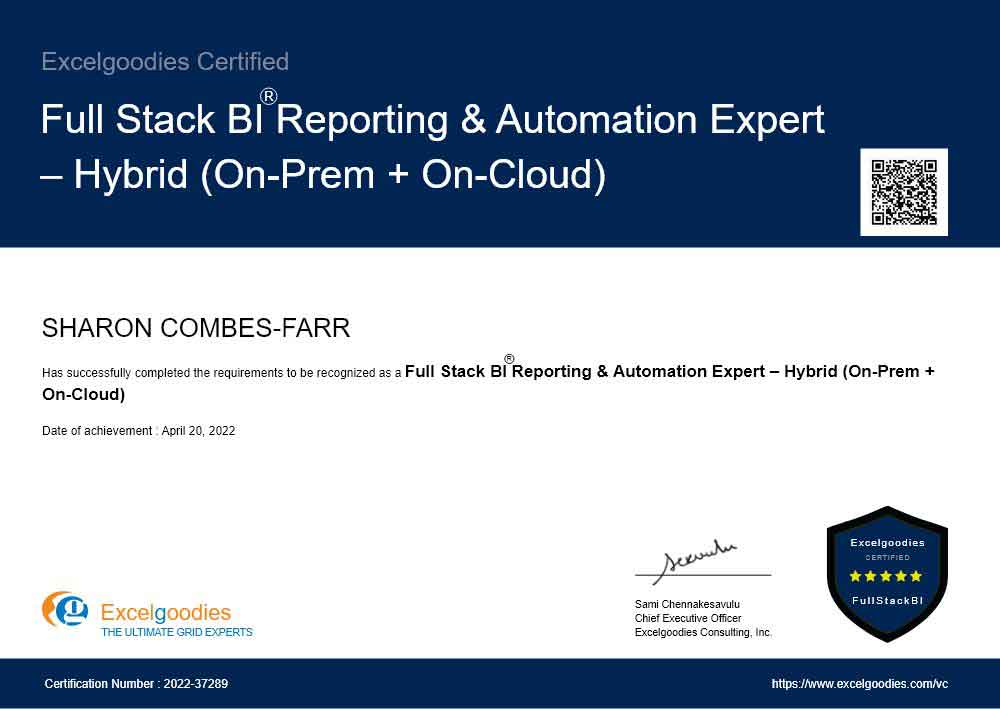
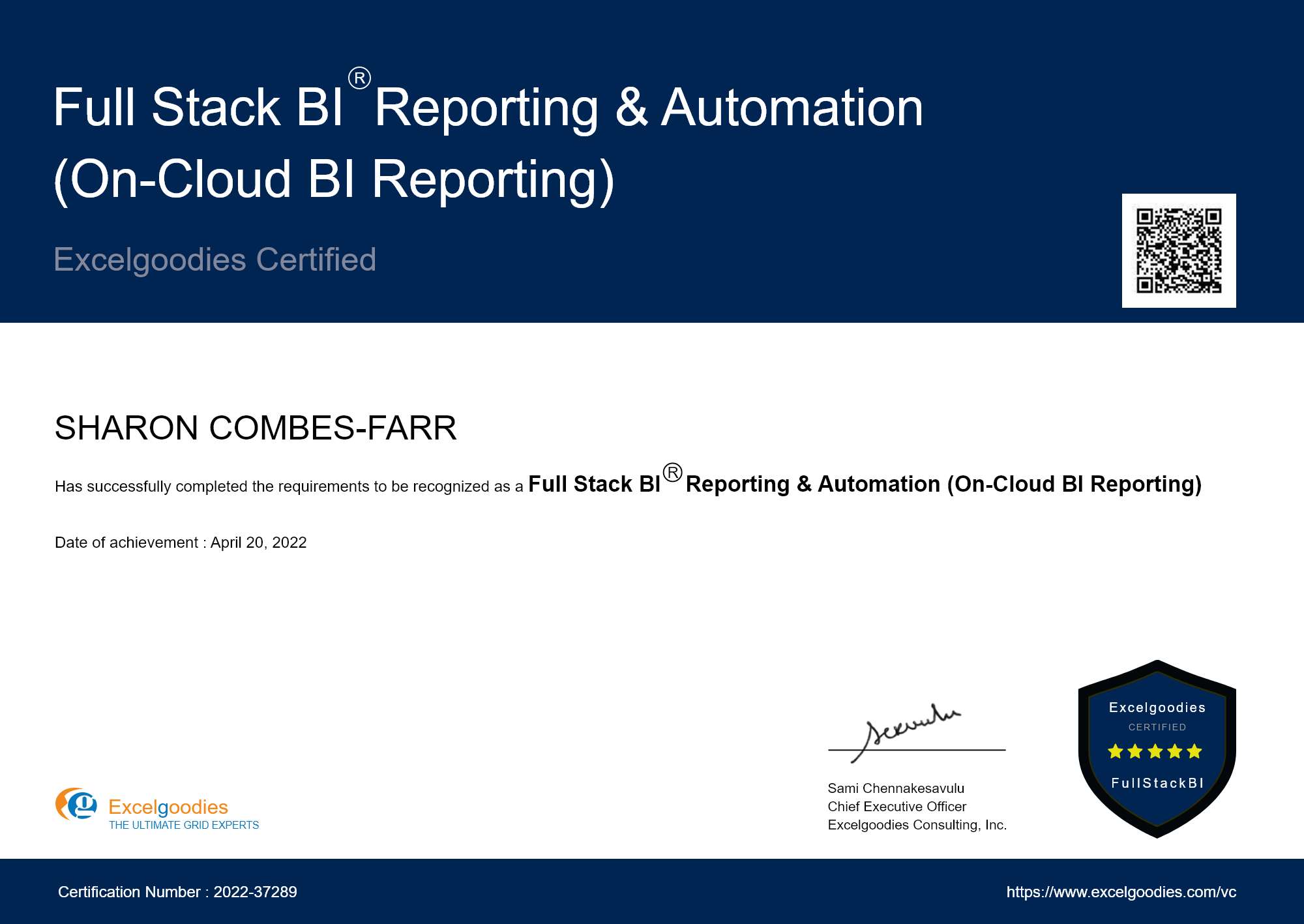
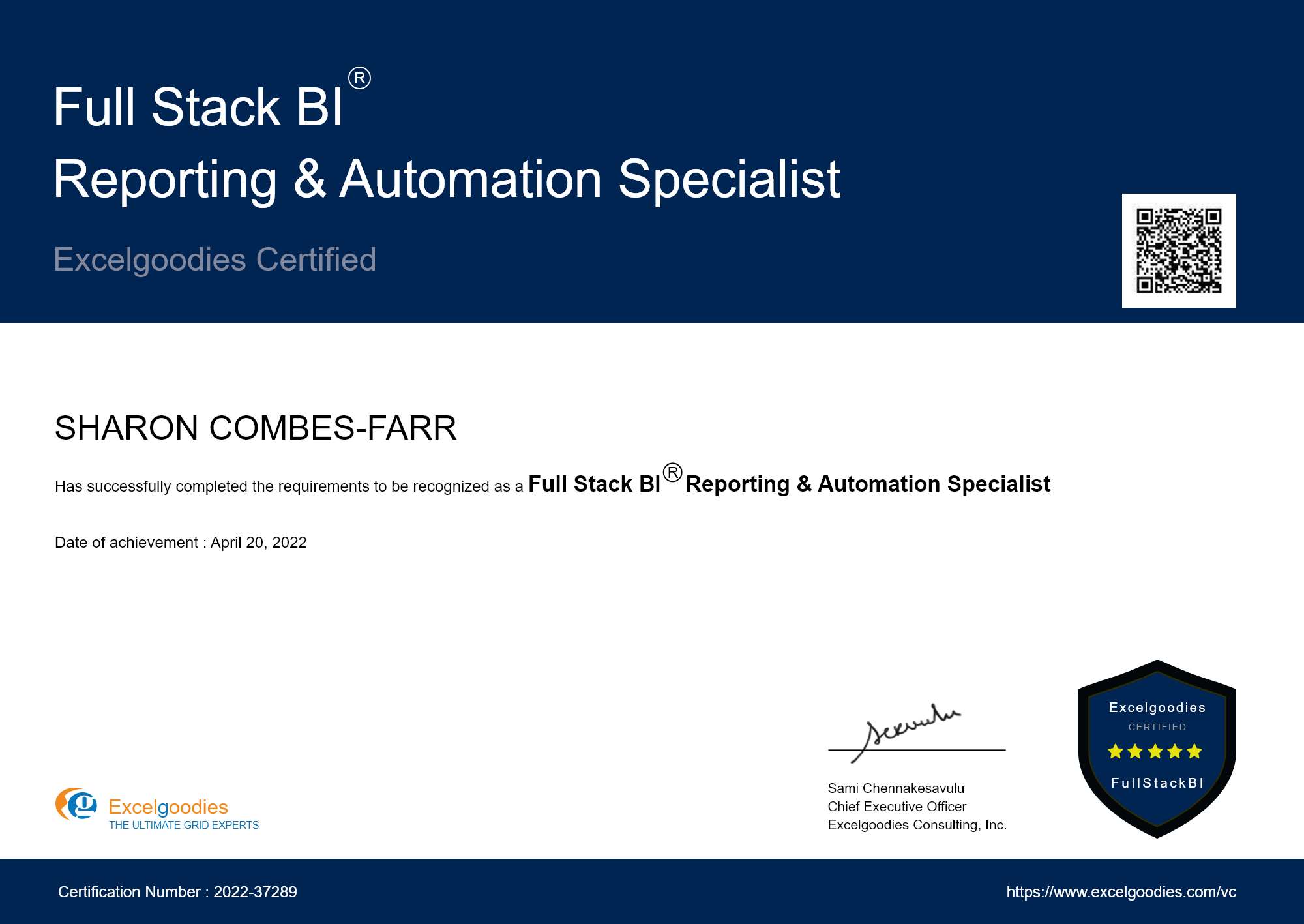
Full Stack BI Reporting & Automation Specialist Certificate (Hybrid)

Additionally, you will earn theFSBI®-Hybrid Title, joining an exclusive community of BI & automation professionals worldwide.

  • You’ll receive detailed class notes & exercises
  • You can attend the same session in a future batch (subject to availability)
  • Live, instructor-led training with hands-on exercises
  • Real-world business scenarios to apply your learning
  • Q&A discussions & troubleshooting to reinforce concepts

No, this is a live interactive course with hands-on projects. However, you’ll receive detailed assignments, documentation, and automation templates to practice.

  • You can retake specific sessions in a future batch (subject to availability)
  • Full course re-enrollment may require an additional fee

Unlike pre-recorded courses, this program is:

  • Live & interactive (hands-on learning, not just videos)
  • Business-focused, solving real-world problems
  • Instructor-led, ensuring direct support & immediate skill application

More questions ?

Gain industry-recognized credentials.

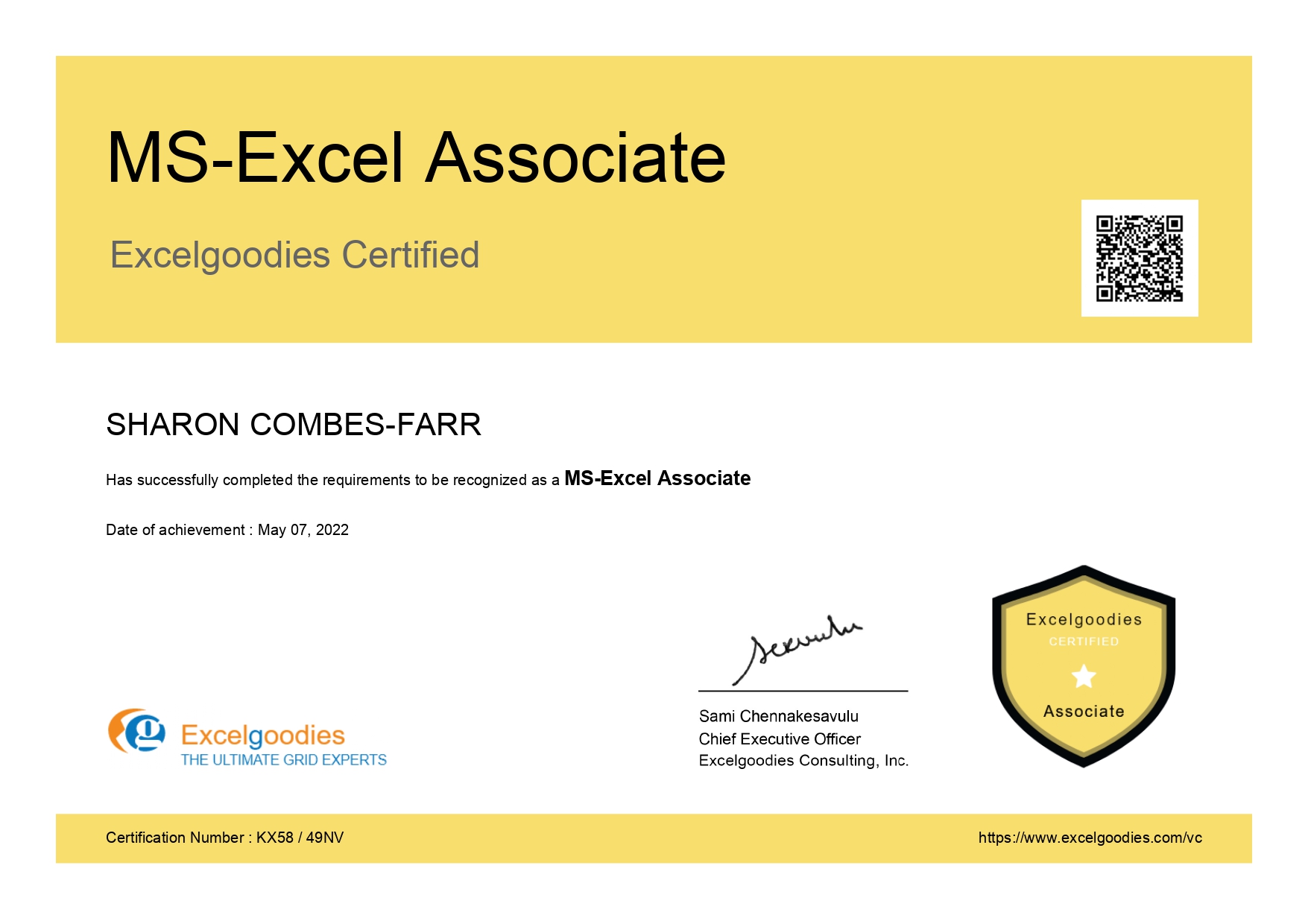
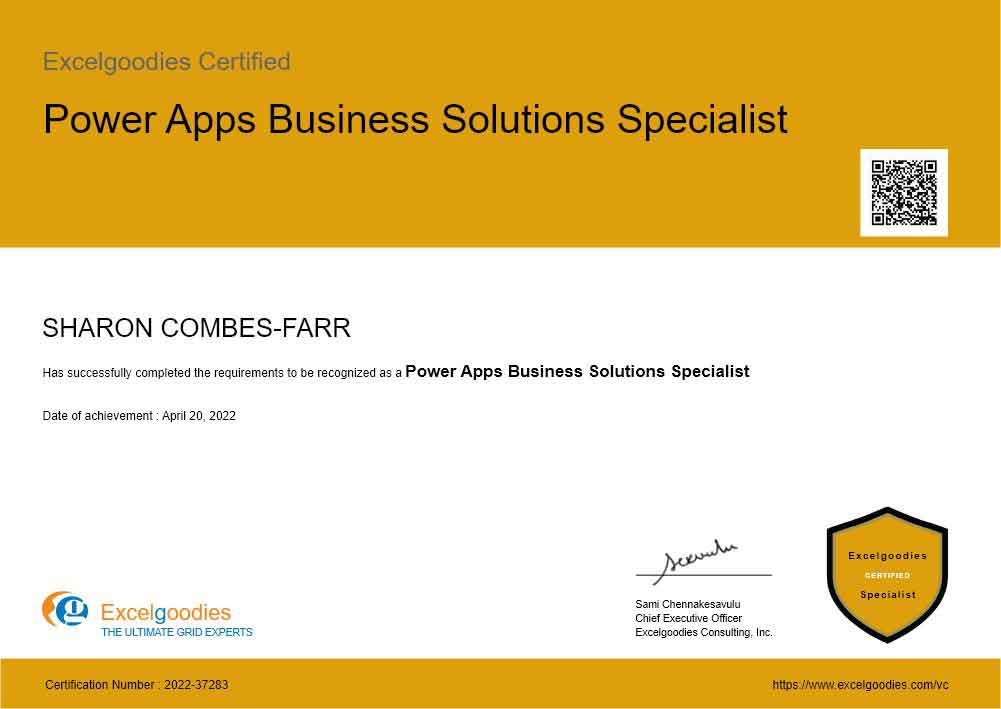
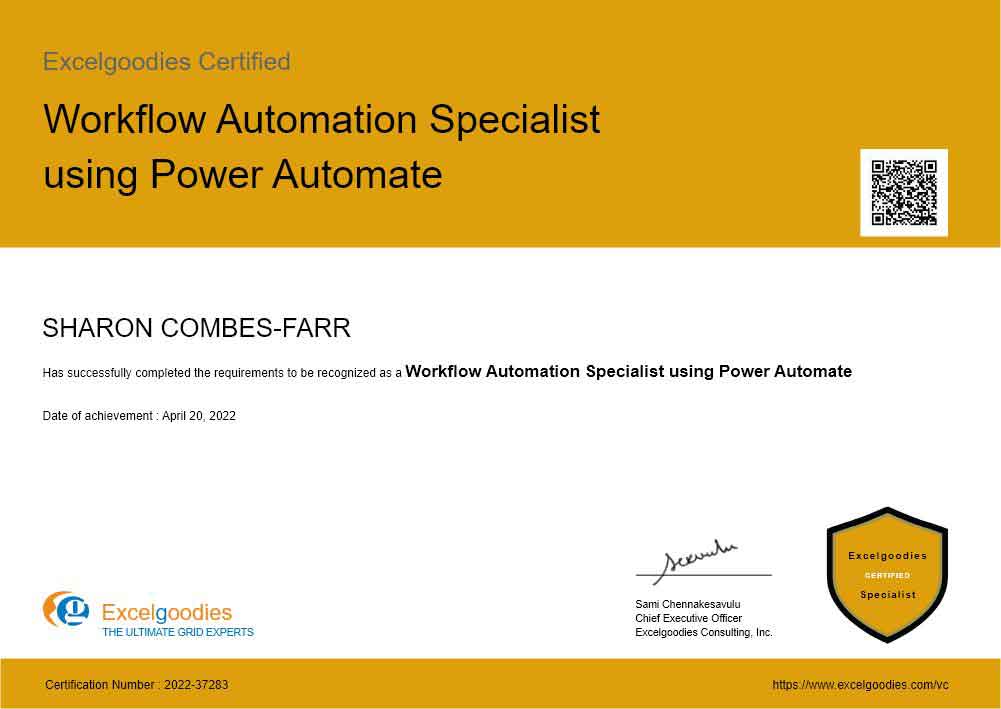
13 Specialized Certificates

Shareable certificate

Add to your LinkedIn profile

Gain industry-recognized credentials.

13 Specialized Certificates

Build Real-World Solutions During the Course

Key Skills You'll Master

Hybrid Data Management

Hybrid SQL Querying & Reporting

Hybrid Data Modeling

Hybrid Automation Techniques

Real-Time Data Processing (Hybrid)

Data Transformation (Hybrid)

Hybrid Database Optimization

Hybrid Business Process Automation

Hybrid Report Automation

Hybrid Performance Tuning

Hybrid Solution Design

Hybrid Data Security & Governance

Data Pipeline Management (Hybrid)

Hybrid Cloud & On-Prem Integration

About The Trainer

Mr. Sami

MCT, MCSA

15,000+

Students Trained

19+

Year of Experience

4.9

Reviews

Mr. Sami, Microsoft Certified Trainer, with his qualifications in Finance, HR & Information Technology brings in 19 years of Industry experience. He has successfully trained 15,000+ professionals by now, and the counting is still on.

He has undertaken assignments with the renowned IRS, The World Bank, Tata Chemicals, Buckman Laboratories, Standard Chartered, ING Barings and much more. His nature of going that Extra Mile has got him the startling popularity amongst the Excelgoodies prominent clients.

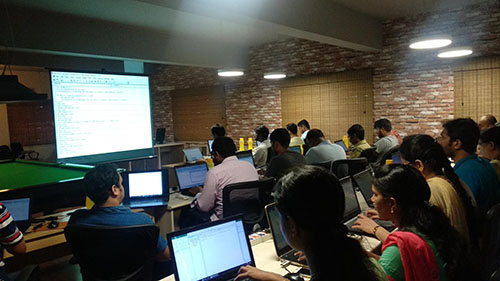
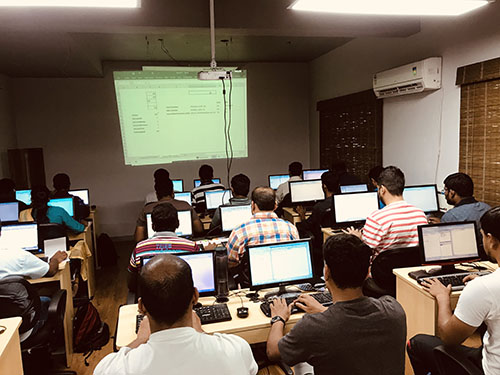
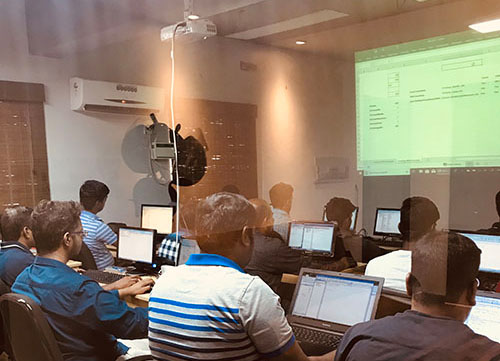
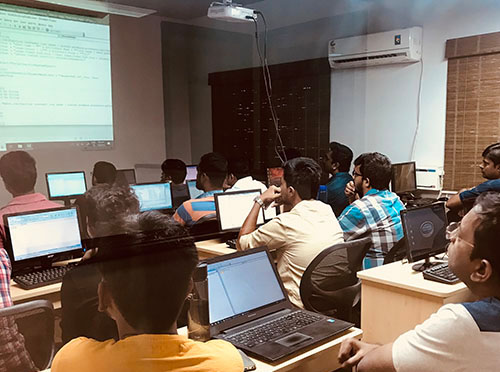
Classroom Gallery

Google Reviews

Hybrid (On-Prem + On-Cloud) Projects

Real-time Projects (Practical Application)

This hybrid course sets you apart with hands-on experience across On-Prem & On-Cloud reporting. Work on 45+ projects covering Power BI dashboards, SQL queries, VBA automation, and app-driven workflows using Power Apps & Power Automate—ensuring you're job-ready.

fullstack courses Power BI

fullstack courses Power Apps

fullstack courses Power Automate

fullstack courses SQL

fullstack courses VBA

Inventory & Supply Chain Dashboard

Create dynamic visualizations that track inventory levels, order fulfillment rates, and supplier performance. Learn to automate real-time data alerts to ensure optimal stock levels and timely deliveries.

Financial Health Dashboard

Build financial dashboards that display key metrics like revenue, expenses, and cash flow, with live updates. Automate reports that compare actual vs. budget figures and offer real-time insights for business decisions.

Customer Support Dashboard

Visualize customer service metrics such as ticket status, response times, and customer satisfaction. Learn how to automate ticket updates and generate insights to improve support efficiency.

Sales Performance Dashboard

Track sales revenue, regional performance, and top-selling products using dynamic visualizations. Create automatic reports to measure progress against sales targets.

Project Management Dashboard

Design a project management dashboard that tracks timelines, budgets, and milestones in real time. Automate status updates to identify risks or delays early.

Marketing Campaign Dashboard

Build dashboards that visualize key marketing metrics, such as conversions, impressions, and ROI. Automate reports to evaluate campaign success and optimize marketing strategies.

Employee Leave Request App

Design a user-friendly app for employees to submit leave requests. Automate approval workflows, track balances, and integrate with SQL databases for real-time leave management.

Sales Order Management App

Build an interactive app for sales teams to create, update, and track orders. Integrate with SQL to retrieve customer data and Power Automate to generate invoices and email confirmations.

Helpdesk System

Develop a mobile-friendly app where customers can log support tickets. Use Power Automate to assign cases, send updates, and generate Power BI reports for service performance tracking.

Expense Reimbursement Tracker

Create an app for employees to submit expense claims with receipt uploads. Automate approval workflows, validate entries against company policies, and generate real-time reimbursement status updates.

Inventory & Asset Management App

Design a system to track inventory and company assets, with barcode scanning capabilities. Connect to a SQL database for real-time stock updates and automate notifications for low inventory levels.

Automated Report Distribution

Schedule and distribute Power BI reports to stakeholders via email or Microsoft Teams. Trigger updates based on data refresh cycles or predefined conditions.

Customer Onboarding Workflow

Streamline new customer onboarding by automating email confirmations, database entry creation in SQL, and document approvals through SharePoint integration.

Invoice Processing & Approval

Extract data from email attachments, validate invoice details against SQL records, and automate approval requests via Teams or Outlook.

Automated Data Entry & Sync

Integrate multiple data sources (Excel, SharePoint, SQL) to automate data entry and keep records synchronized across different systems.

Real-Time Alerts & Notifications

Set up automated alerts for critical business events, such as exceeding sales targets, system downtime, or low inventory, with notifications sent via Teams, email, or mobile push alerts.

Database Design & Normalization

Design and normalize relational databases using primary keys,foreign keys, and normal forms to optimize storage and scalability.

Customer Data Analysis

Analyze customer data with JOINs, GROUP BY, and HAVING to identify trends, segment groups, and generate insights for marketing.

Sales Data Analysis

Use window functions and CTEs to track sales metrics, revenue, and product performance, generating actionable insights.

Inventory Management Queries

Leverage subqueries, UNION, and CASE to track inventory, product stock, and sales velocity for decision-making.

Employee Performance Tracker

Apply ranking functions (e.g., RANK(), DENSE_RANK()) to evaluate employee performance, track KPIs, and enhance workforce management.

Financial Reporting Queries

Retrieve financial data using aggregate functions and GROUP BY to automate real-time reports for balance sheets and P&L statements.

Automated Excel Report Generation

Automate the creation of complex reports with VBA macros and Python scripts. Generate dynamic pivot tables, charts, and formatted summaries at the click of a button.

Email & Report Automation

Use VBA and Outlook automation to send scheduled reports based on data conditions. Ensure timely delivery of financial, sales, or operational updates.

Web Scraping & Data Collection

Automate data extraction from websites using Python (BeautifulSoup, Selenium) to collect real-time insights for competitive analysis and trend tracking.

Data Cleaning & Transformation

Leverage Python and VBA to clean and standardize raw data, automate missing value handling, and prepare datasets for reporting.

Smart Financial Generator

Use VBA and Python to extract financial data, consolidate income statements, and generate automated balance sheets with dynamic updates.

Create dynamic visualizations that track inventory levels, order fulfillment rates, and supplier performance. Learn to automate real-time data alerts to ensure optimal stock levels and timely deliveries.

Build financial dashboards that display key metrics like revenue, expenses, and cash flow, with live updates. Automate reports that compare actual vs. budget figures and offer real-time insights for business decisions.

Visualize customer service metrics such as ticket status, response times, and customer satisfaction. Learn how to automate ticket updates and generate insights to improve support efficiency.

Track sales revenue, regional performance, and top-selling products using dynamic visualizations. Create automatic reports to measure progress against sales targets.

Design a project management dashboard that tracks timelines, budgets, and milestones in real time. Automate status updates to identify risks or delays early.

Build dashboards that visualize key marketing metrics, such as conversions, impressions, and ROI. Automate reports to evaluate campaign success and optimize marketing strategies.

Design a user-friendly app for employees to submit leave requests. Automate approval workflows, track balances, and integrate with SQL databases for real-time leave management.

Build an interactive app for sales teams to create, update, and track orders. Integrate with SQL to retrieve customer data and Power Automate to generate invoices and email confirmations.

Develop a mobile-friendly app where customers can log support tickets. Use Power Automate to assign cases, send updates, and generate Power BI reports for service performance tracking.

Create an app for employees to submit expense claims with receipt uploads. Automate approval workflows, validate entries against company policies, and generate real-time reimbursement status updates.

Design a system to track inventory and company assets, with barcode scanning capabilities. Connect to a SQL database for real-time stock updates and automate notifications for low inventory levels.

Schedule and distribute Power BI reports to stakeholders via email or Microsoft Teams. Trigger updates based on data refresh cycles or predefined conditions.

Streamline new customer onboarding by automating email confirmations, database entry creation in SQL, and document approvals through SharePoint integration.

Extract data from email attachments, validate invoice details against SQL records, and automate approval requests via Teams or Outlook.

Integrate multiple data sources (Excel, SharePoint, SQL) to automate data entry and keep records synchronized across different systems.

Set up automated alerts for critical business events, such as exceeding sales targets, system downtime, or low inventory, with notifications sent via Teams, email, or mobile push alerts.

Design and normalize relational databases using primary keys,foreign keys, and normal forms to optimize storage and scalability.

Analyze customer data with JOINs, GROUP BY, and HAVING to identify trends, segment groups, and generate insights for marketing.

Use window functions and CTEs to track sales metrics, revenue, and product performance, generating actionable insights.

Leverage subqueries, UNION, and CASE to track inventory, product stock, and sales velocity for decision-making.

Apply ranking functions (e.g., RANK(), DENSE_RANK()) to evaluate employee performance, track KPIs, and enhance workforce management.

Retrieve financial data using aggregate functions and GROUP BY to automate real-time reports for balance sheets and P&L statements.

Automate the creation of complex reports with VBA macros and Python scripts. Generate dynamic pivot tables, charts, and formatted summaries at the click of a button.

Use VBA and Outlook automation to send scheduled reports based on data conditions. Ensure timely delivery of financial, sales, or operational updates.

Automate data extraction from websites using Python (BeautifulSoup, Selenium) to collect real-time insights for competitive analysis and trend tracking.

Leverage Python and VBA to clean and standardize raw data, automate missing value handling, and prepare datasets for reporting.

Use VBA and Python to extract financial data, consolidate income statements, and generate automated balance sheets with dynamic updates.

Corporate Training

bi_report_automation_mob

Avail additional 10% Corporate Benefit on the total course fee for 5+participants.

Get you team BI ready, today.

Ms.Jayasree

Business Associate

Prove you're human: Type the code shown.

=
Excelgoodies

Esteemed Clientele

Esteemed Clientele Esteemed Clientele Esteemed Clientele Esteemed Clientele Esteemed Clientele Esteemed Clientele Esteemed Clientele Esteemed Clientele Esteemed Clientele Esteemed Clientele Esteemed Clientele Esteemed Clientele Esteemed Clientele Esteemed Clientele Esteemed Clientele Esteemed Clientele Esteemed Clientele Esteemed Clientele Esteemed Clientele Esteemed Clientele Esteemed Clientele Esteemed Clientele Esteemed Clientele Esteemed Clientele Esteemed Clientele Esteemed Clientele Esteemed Clientele Esteemed Clientele Esteemed Clientele Esteemed Clientele Esteemed Clientele Esteemed Clientele Esteemed Clientele Esteemed Clientele Esteemed Clientele Esteemed Clientele Esteemed Clientele Esteemed Clientele Esteemed Clientele Esteemed Clientele Esteemed Clientele Esteemed Clientele Esteemed Clientele Esteemed Clientele Esteemed Clientele Esteemed Clientele Esteemed Clientele Esteemed Clientele Esteemed Clientele Esteemed Clientele Esteemed Clientele Esteemed Clientele Esteemed Clientele Esteemed Clientele Esteemed Clientele Esteemed Clientele Esteemed Clientele Esteemed Clientele

Thousands Trained. Here’s What They Say.

Total Reviews 2080
Average Rating
4.5
Excelgoodies Excelgoodies Excelgoodies Excelgoodies Excelgoodies
Why Excelgoodies image

Thousands Trained. Here’s What They Say.

APPLICATION DEADLINE

Registration Closes
on .

Prove you're human: Type the code shown.

=
Excelgoodies

Industry Insights

Industry Insights